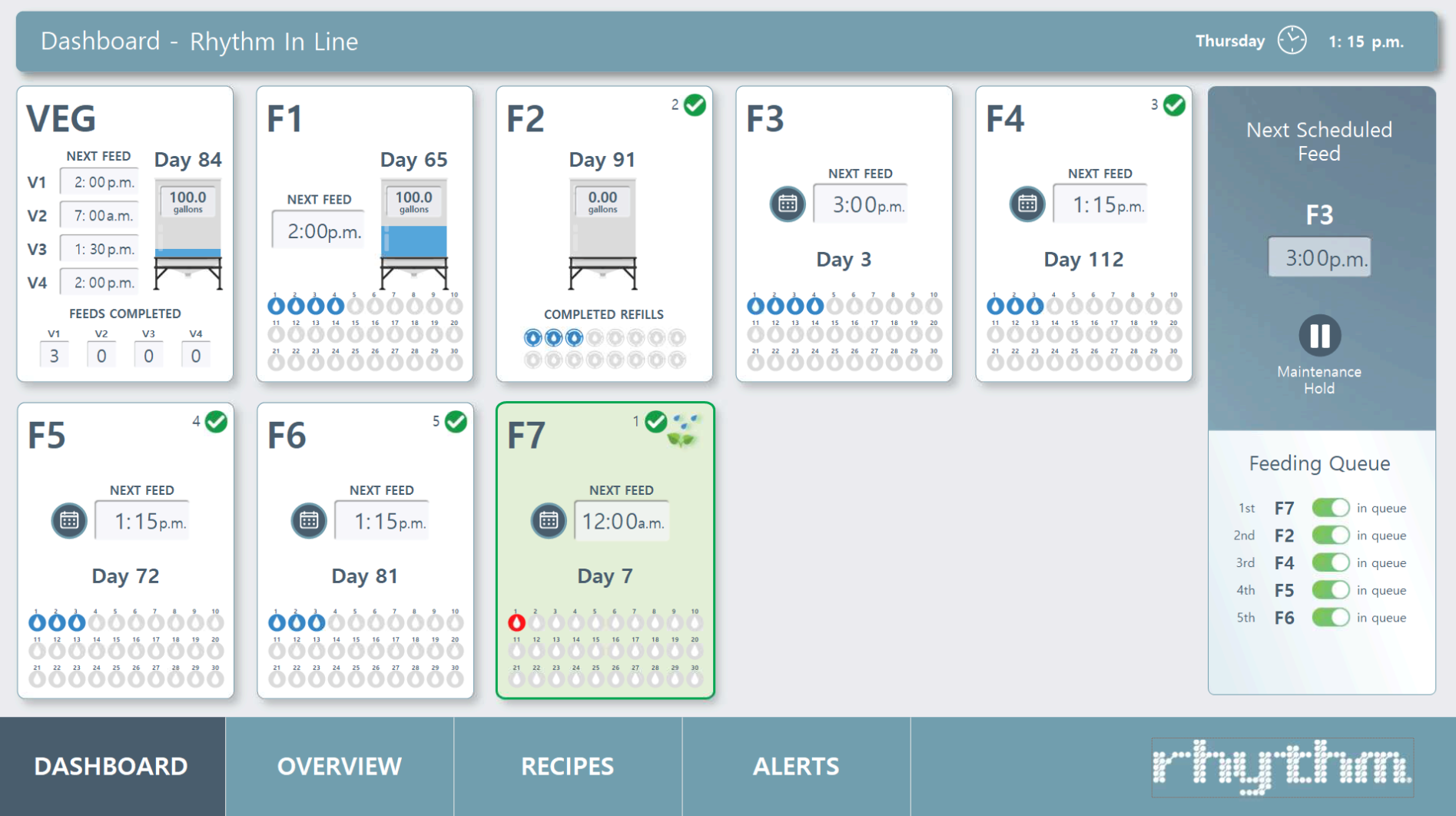
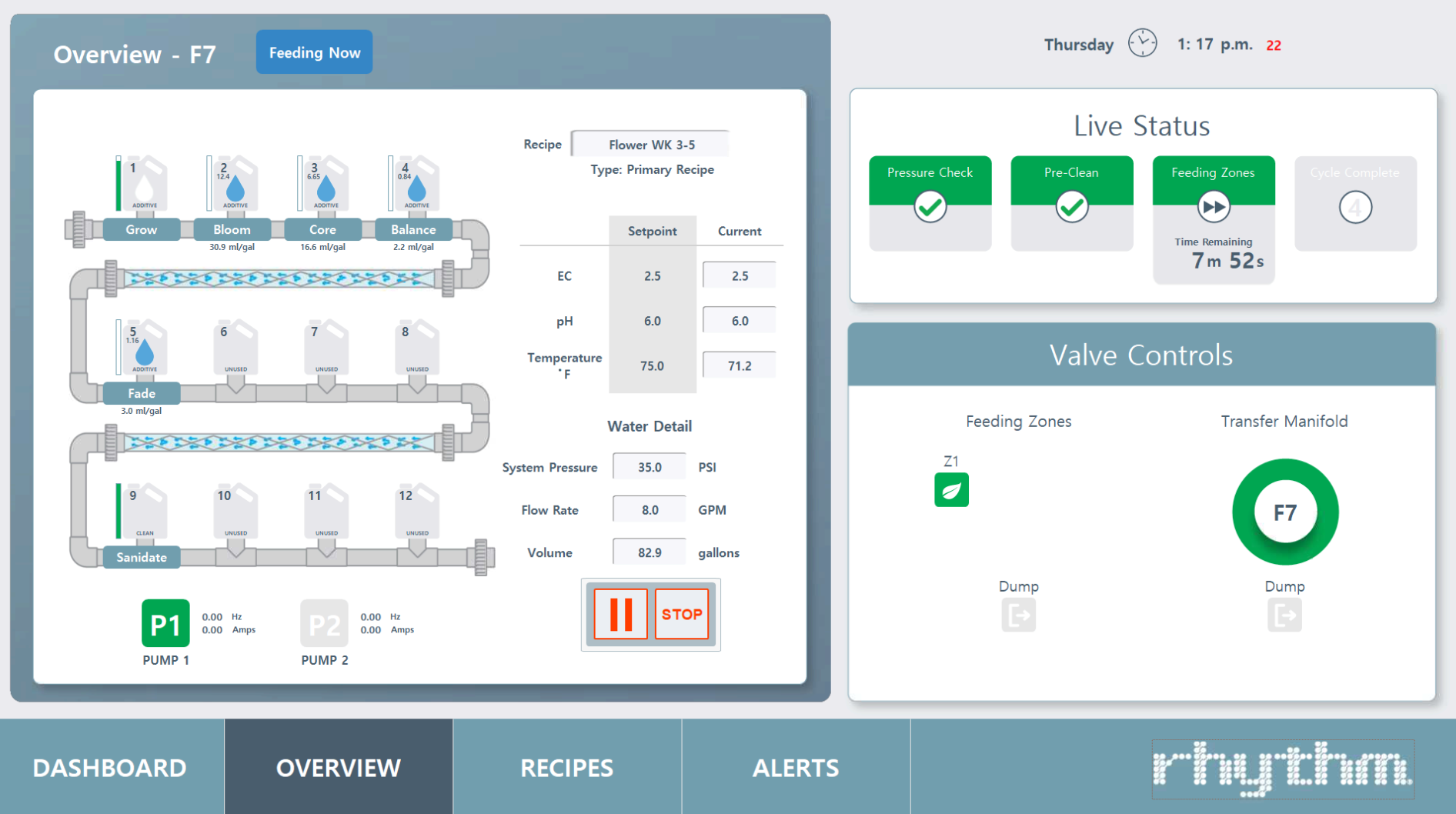
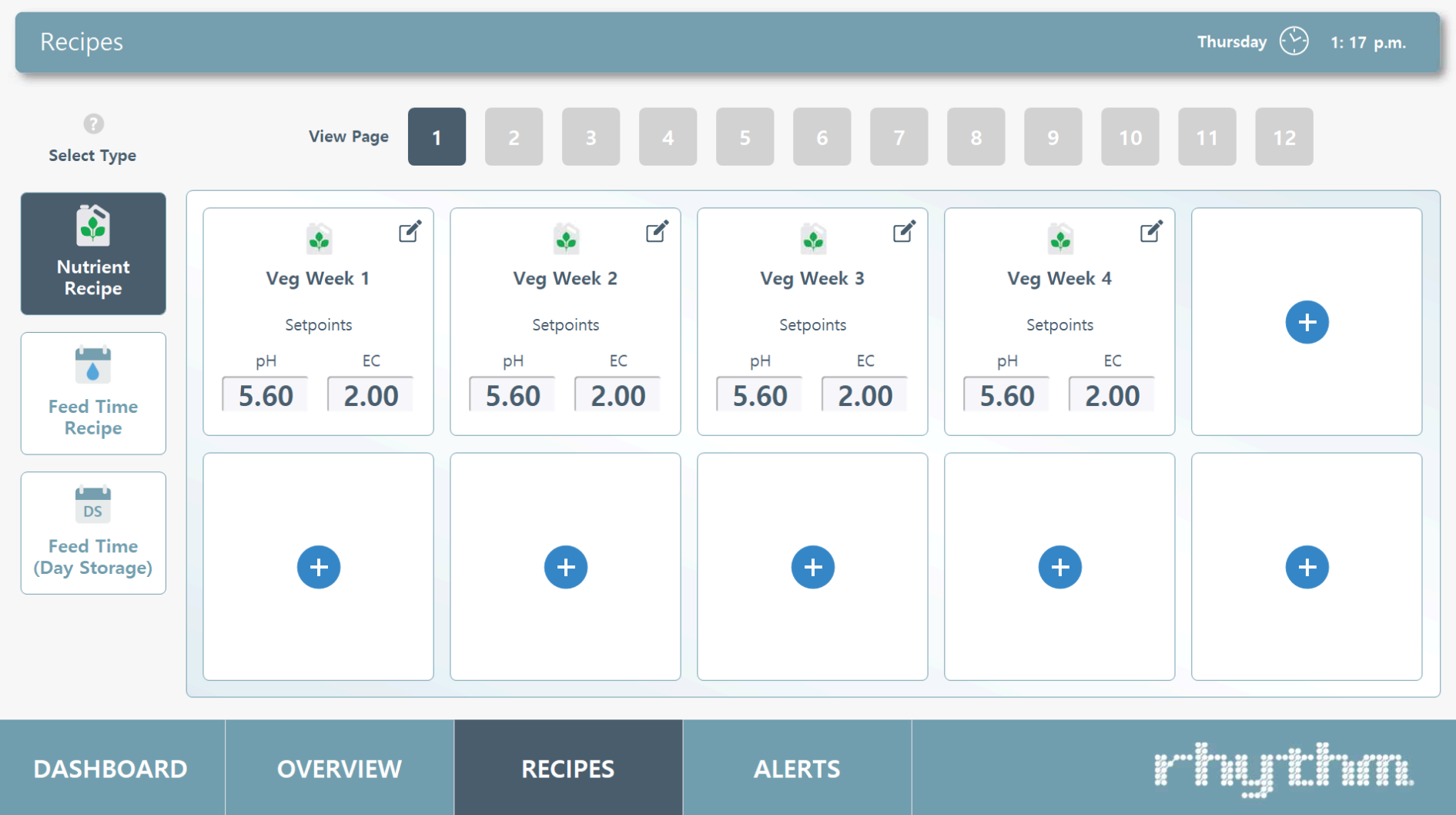
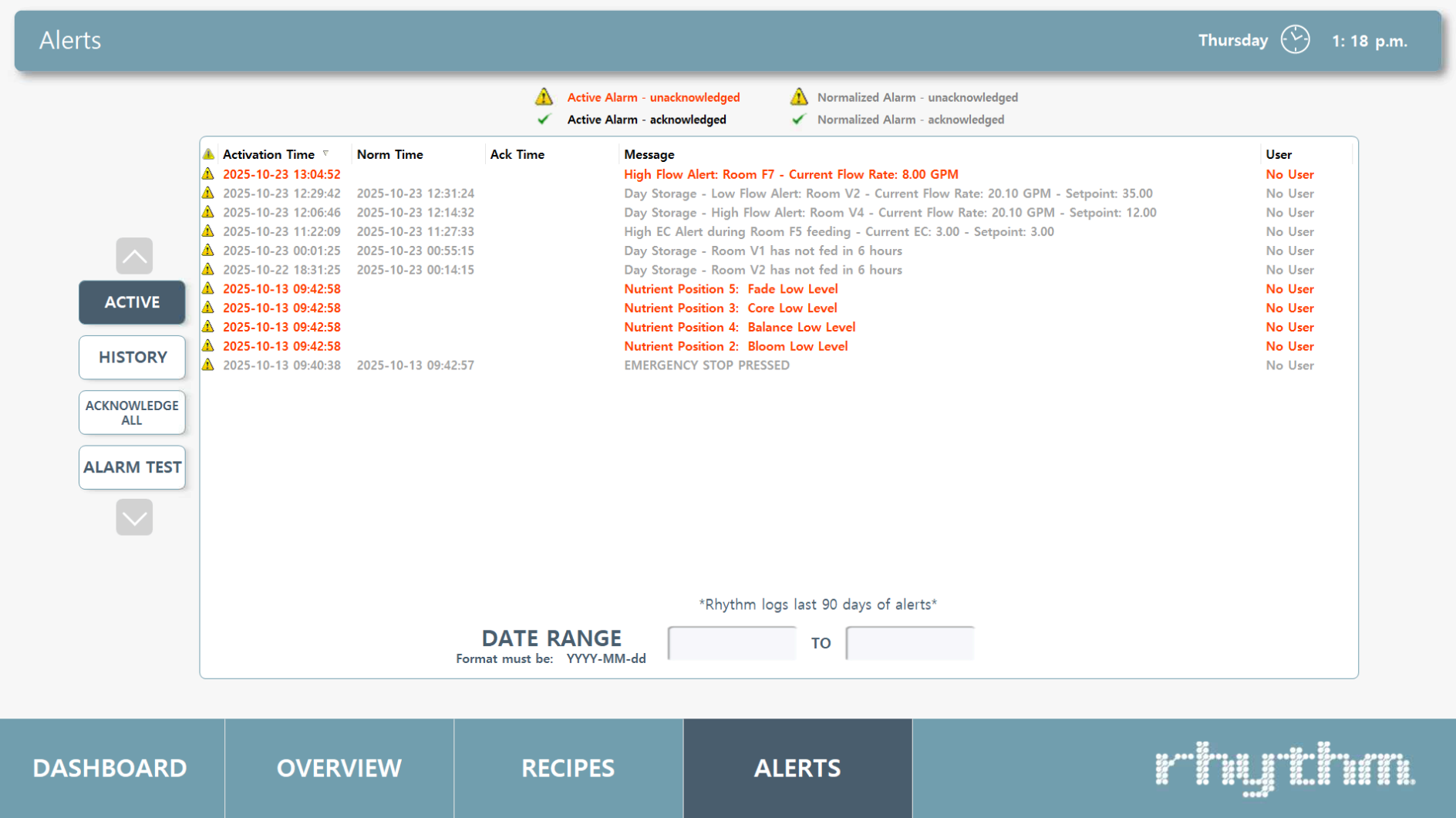
The Rhythm Advanced Software has two menus that can be accessed from any screen within the fertigation software. The first menu is the lower menu, located at the bottom of every screen.
Click on the screenshot images to see more detail.
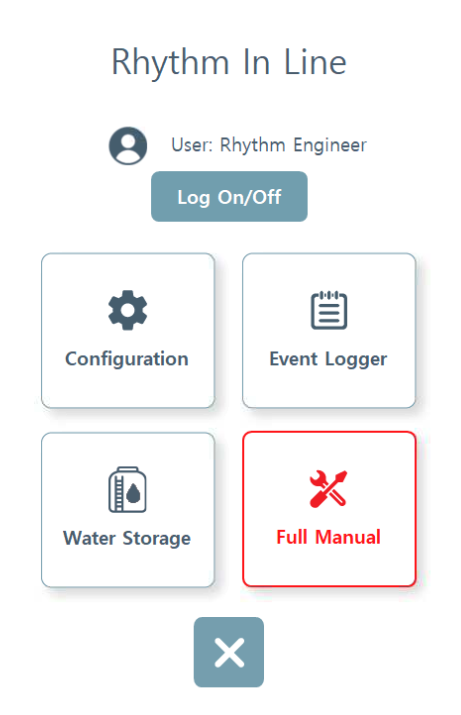
Click the Rhythm Logo to reveal the main menu. Click on the screenshot images to see more detail.
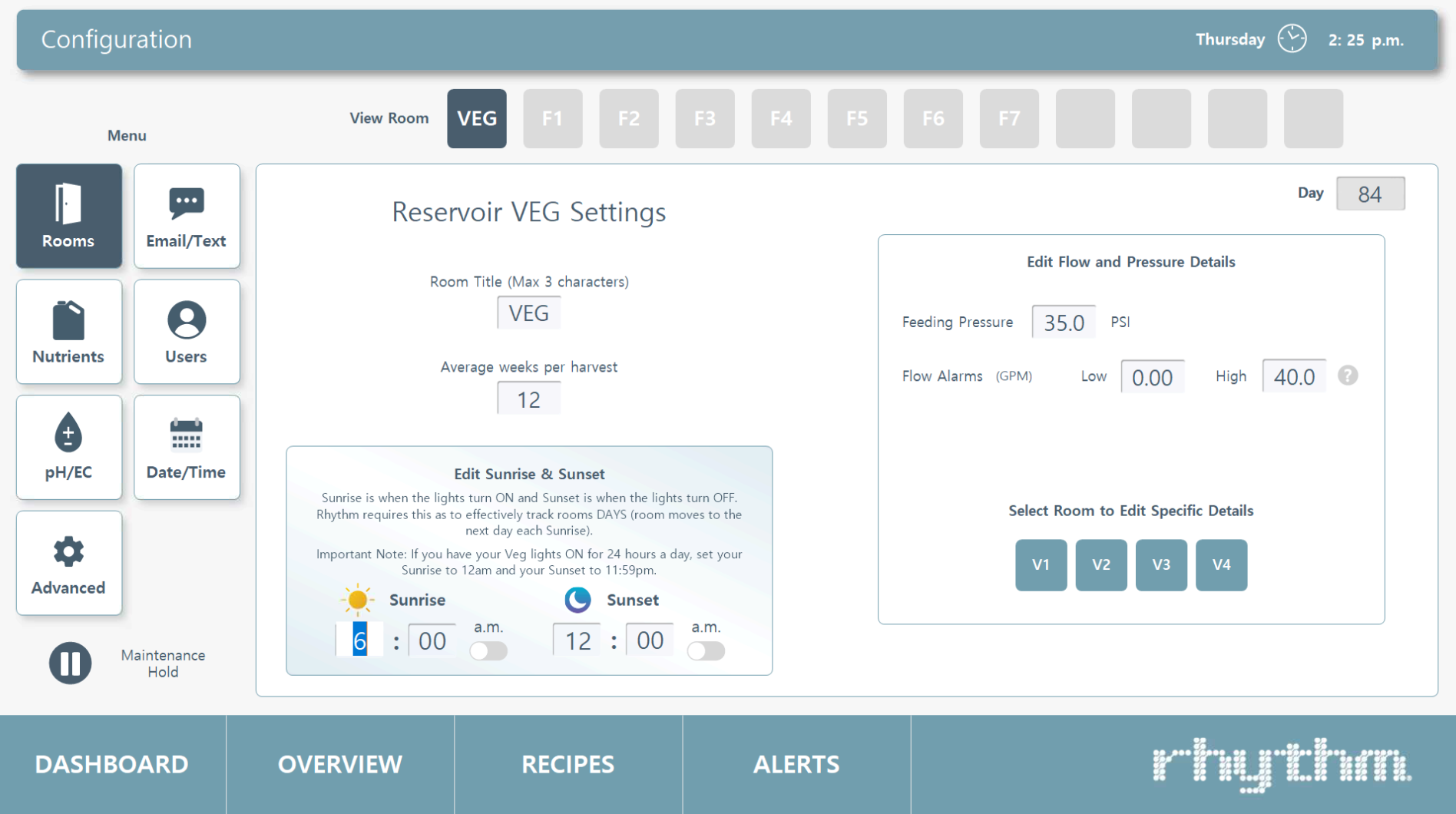
Configuration
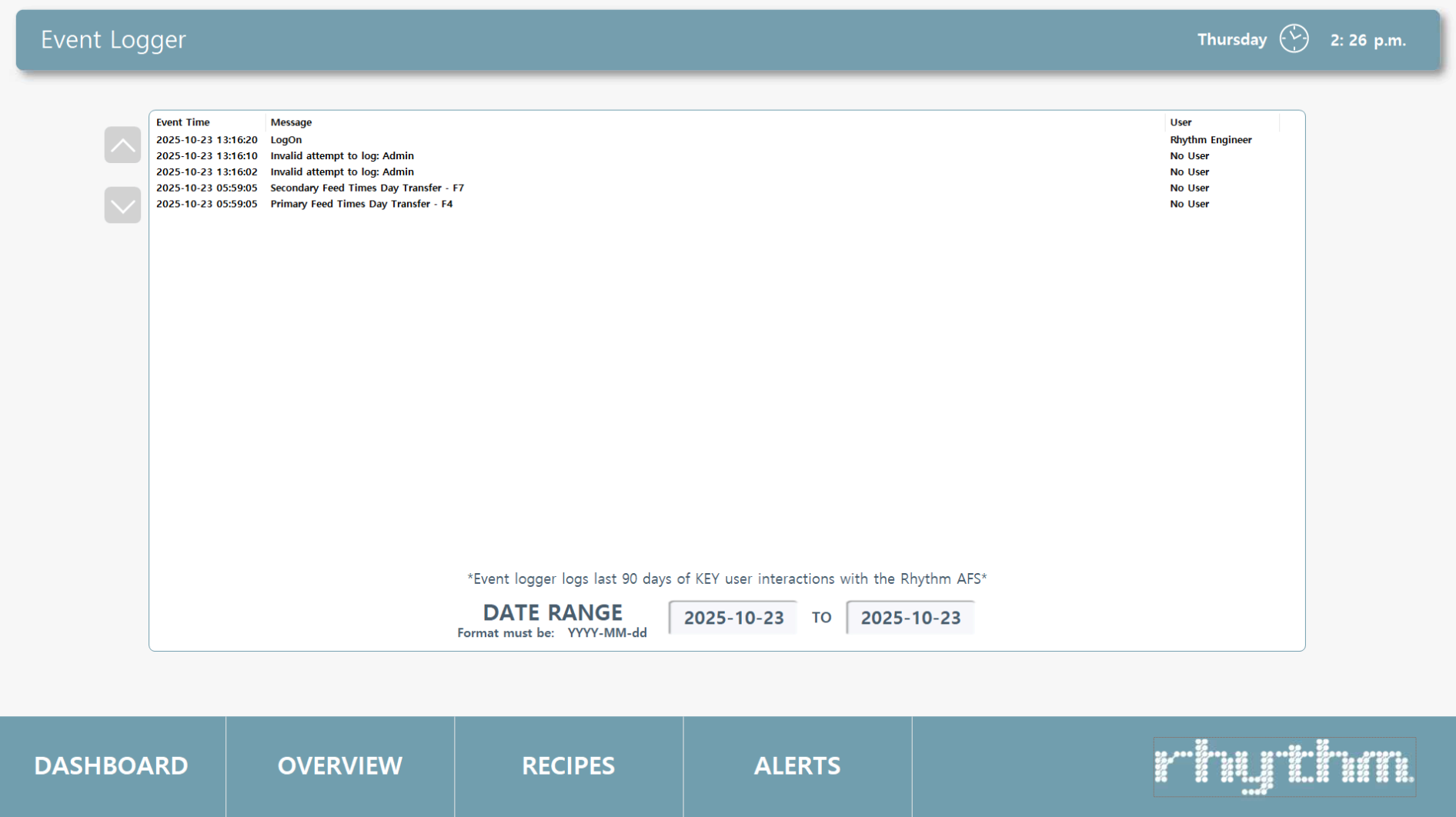
Event Logger
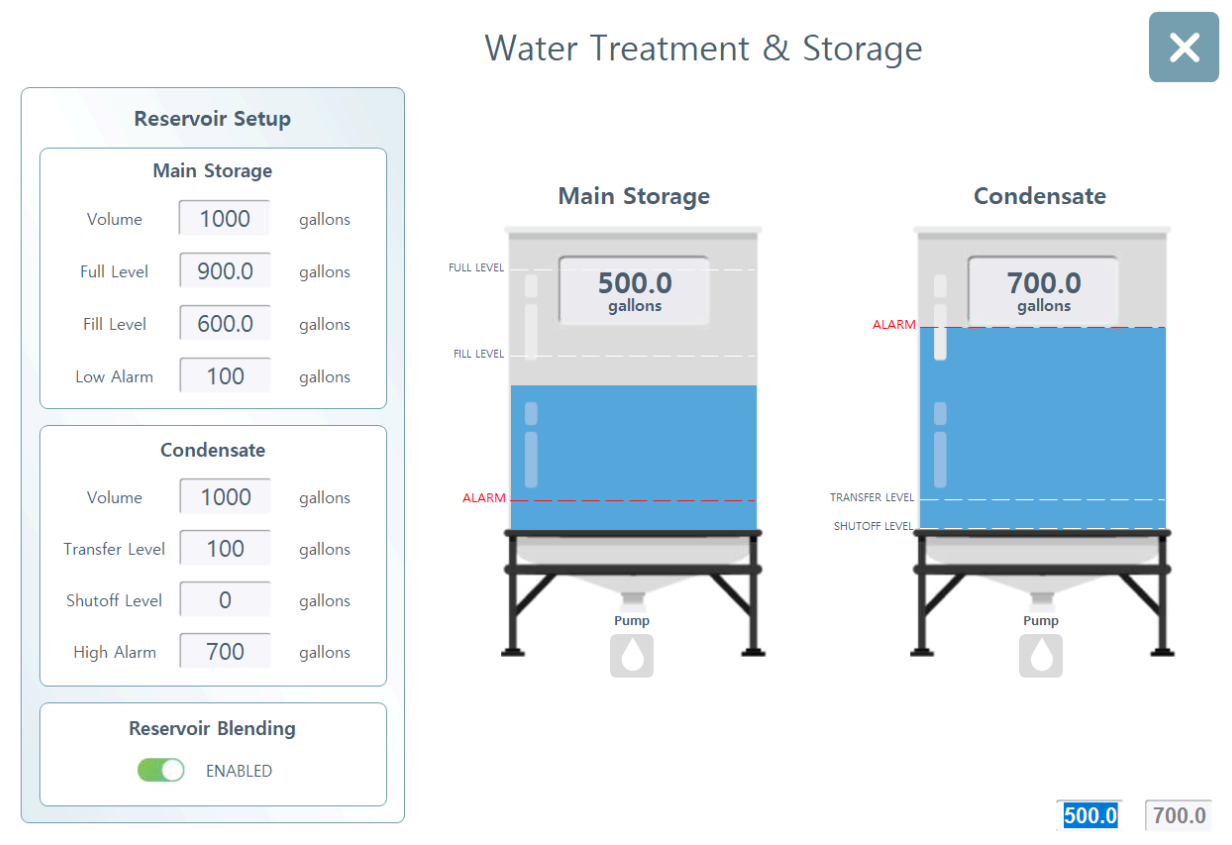
Water Treatment & Storage
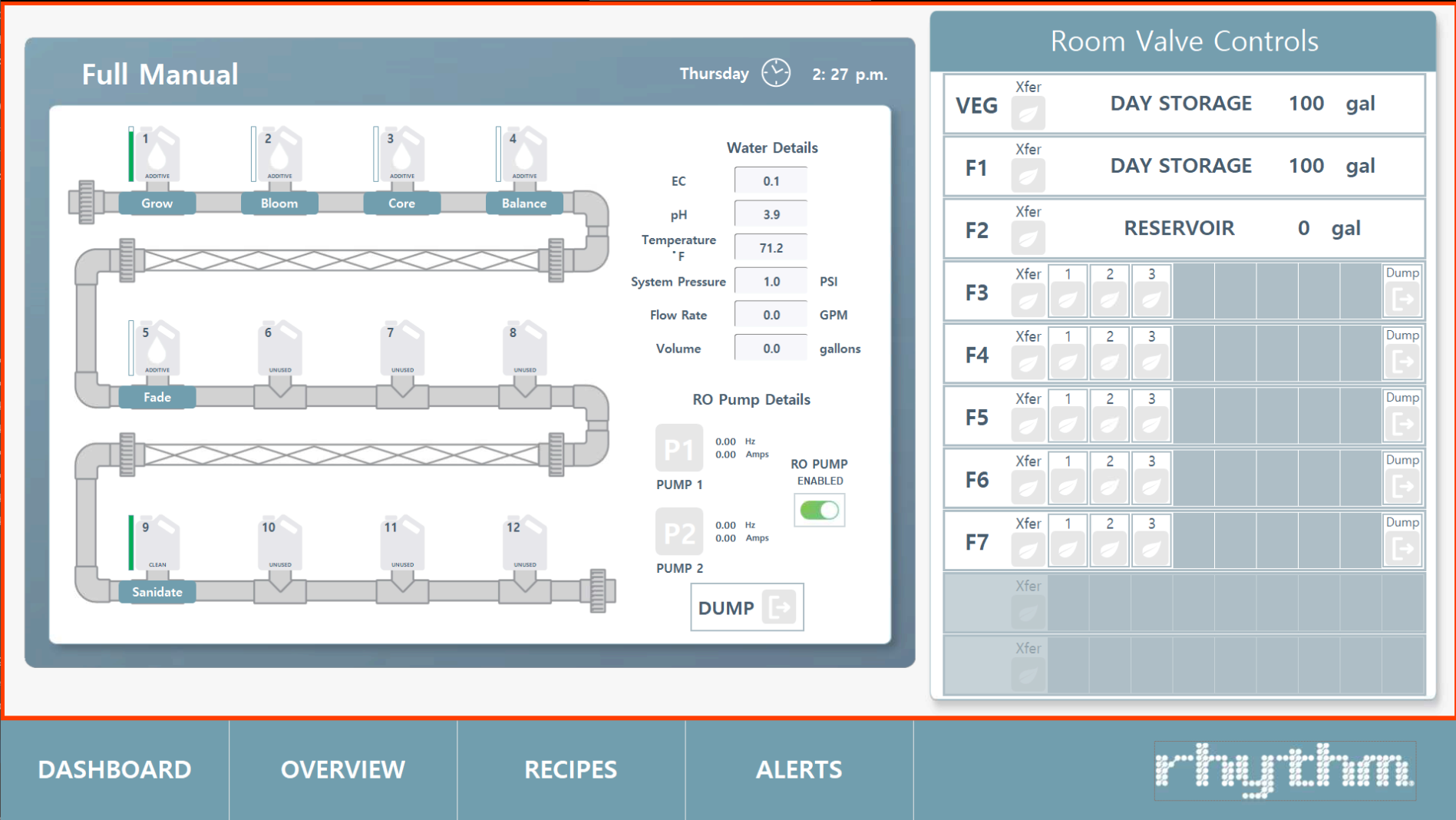
Full Manual
The Feed Scheduler can be accessed by going to Dashboard > ROOM CARD # > The lower menu now shows "SCHEDULER" instead of ALERTS. Click Scheduler.
Click the screenshot below to see more detail.

Feed Scheduler
Create recipes. In order to feed a room, you will need to create a recipe. This recipe will tell the system WHEN you'd like to water, WHICH nutrients to add to the mix, HOW OFTEN you'd like it to repeat throughout the day, and HOW MUCH volume to water per zone. For a full guide on how to create a recipe, please click "RECIPES" on the bottom of the main screen of your software, and then read through the
ADD A RECIPE section here.
Assign schedules to rooms. Once you have created a recipe with a schedule, you can PLACE the recipe into each room's SCHEDULER. The Scheduler has (up to) 15 weeks in which you can place a different (or the same) recipe into each week. This allows the system to run on an automated schedule so that you can 'set it and forget it.' If you don't want to create a set schedule, you can always choose "Loop Recipe" which will feed the room in a frequency pattern (i.e. water for 10 minutes every 2 hours from 9am to 4pm). For full details on the scheduler, please click on ROOMS > Recipe Card in your software and then see the
FEED MANAGER page here. You will need to repeat this process for every room.
Important!
The system allows for complete automation with safe guards, or complete manual functionality, but you must make sure everything is configured for what you want to achieve. There are many different features for different circumstances of watering, so please read through the entire software guide to become aware of everything you can do.
Once your recipes are in place and you have configured your dates and times and other features, you will be ready to feed! Your rooms will feed on an automated schedule, but the software will also allow you to:
•
Feed on demand. Even if you have schedules running, you can always run a feed at any time on demand. With the Rhythm software, you can even run your entire facility on manual operation if you wanted to, however it is best to run automated schedules and then supplement with feeding on demand as needed.
•
Set up flush days. These are feeds that override the regular schedule on a set day. They are called "flush days" because growers commonly use them for feeding some kind of flush recipe one one day of the week (i.e. flush every Friday). However, any type of recipe can be utilized in this feature to override the regular schedule.
•
Feed different zones different amounts. Because plants are dynamic, each zone can have different sizes or strains in one room which will require feeding them different volumes. This can be done in our software through the FEED MANAGER.
•
View your feeding queue. View which feeds are up next in the DASHBOARD.
Important!Once your room is actively feeding, it is important to familiarize yourself with the MAIN OVERVIEW SCREEN. It is especially important to dial in your STABILIZATION PROCESS. If you do not dial in the pH ratios and become familiar with how nutrients and volume amounts affect batches, it can result in batches that take too long to mix or don't achieve desirable pH/EC values.
Please read the guide available here. 


















.svg)