

SOFTWARE USER GUIDE
Dashboard
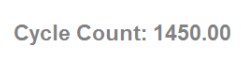
Cycle Count. This is how many batches your system has run in its lifetime.
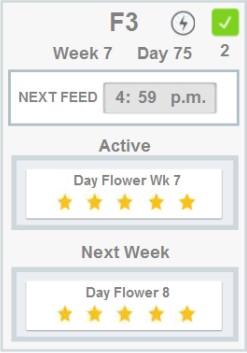
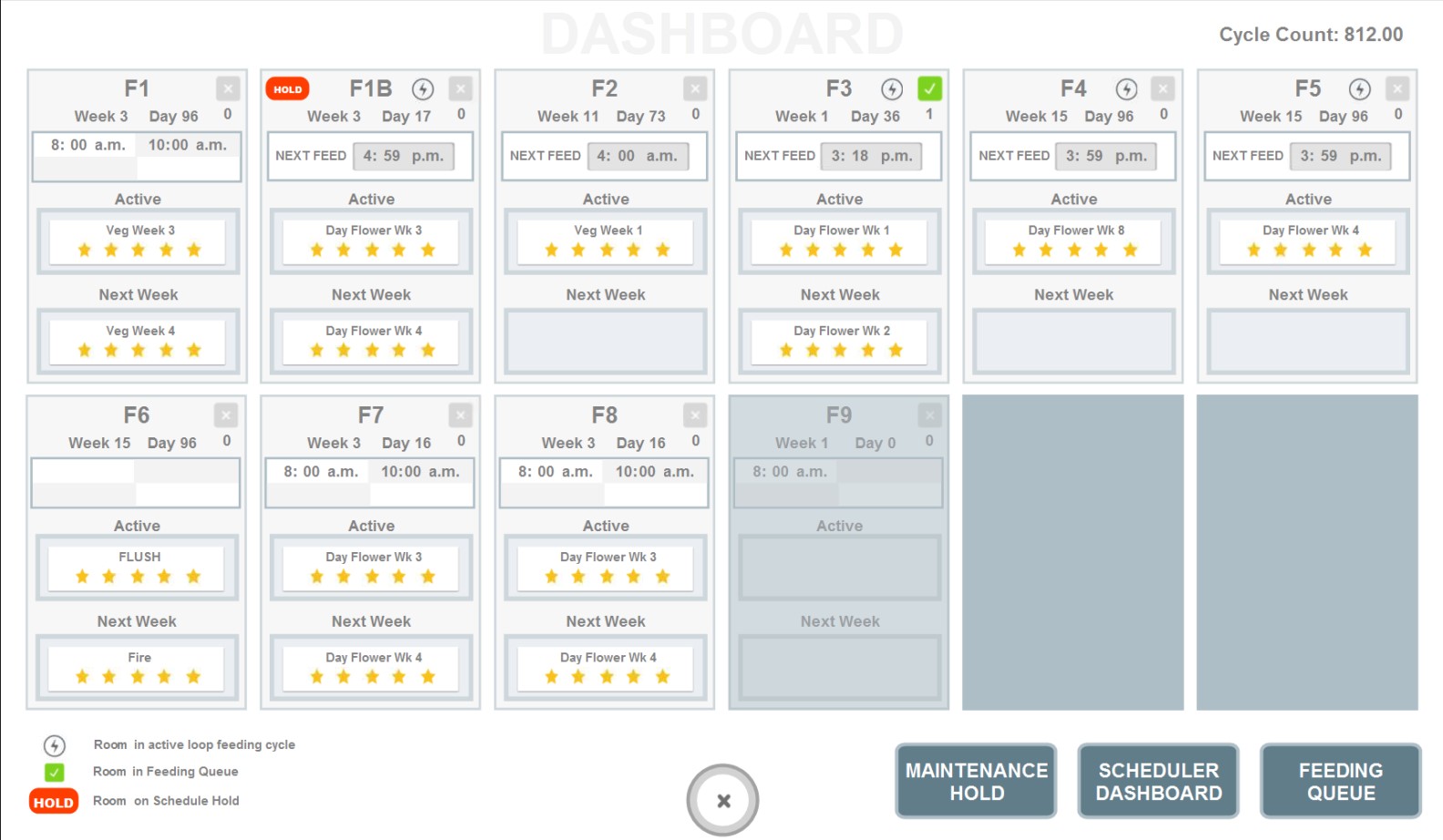
Room Card. The Dashboard shows a bird's eye view of which rooms are watering today, when the next feed is, and if the room is in the mixing queue or on a hold.
Clicking directly on the room card will take you to the Room's Overview Page where you can edit things if necessary.
Feeding Queue. A room will enter the queue if the scheduled or loop time passes, or if you manually drip feed a room/reservoir from the FEEDING MANAGER. If more than one room is in the queue at once, the system will enter them in order of scheduled time. If manual drip feeds are entered, they will enter the queue in the order they were entered. If multiple types of feeds are in the queue, the system usually prioritizes the order from LEFT TO RIGHT. This is a engineer programming setting, so it may vary per customer.
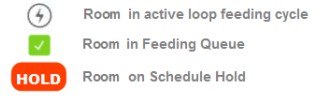
Take note of the legend in the bottom left hand corner for details on the icons for rooms on hold, rooms in queue, and rooms in feeding cycle.
Clicking directly on the room card will take you to the Room's Overview Page where you can edit things if necessary.
Feeding Queue. A room will enter the queue if the scheduled or loop time passes, or if you manually drip feed a room/reservoir from the FEEDING MANAGER. If more than one room is in the queue at once, the system will enter them in order of scheduled time. If manual drip feeds are entered, they will enter the queue in the order they were entered. If multiple types of feeds are in the queue, the system usually prioritizes the order from LEFT TO RIGHT. This is a engineer programming setting, so it may vary per customer.
Take note of the legend in the bottom left hand corner for details on the icons for rooms on hold, rooms in queue, and rooms in feeding cycle.
Maintenance Hold. Pressing this will place the system on complete hold. It is a quick way to hold the processes while you maintenance the system. If a feed is currently being mixed while you pressed hold, you will be prompted to choose whether you'd like the system to dump the mix or resume the feed upon resuming function.

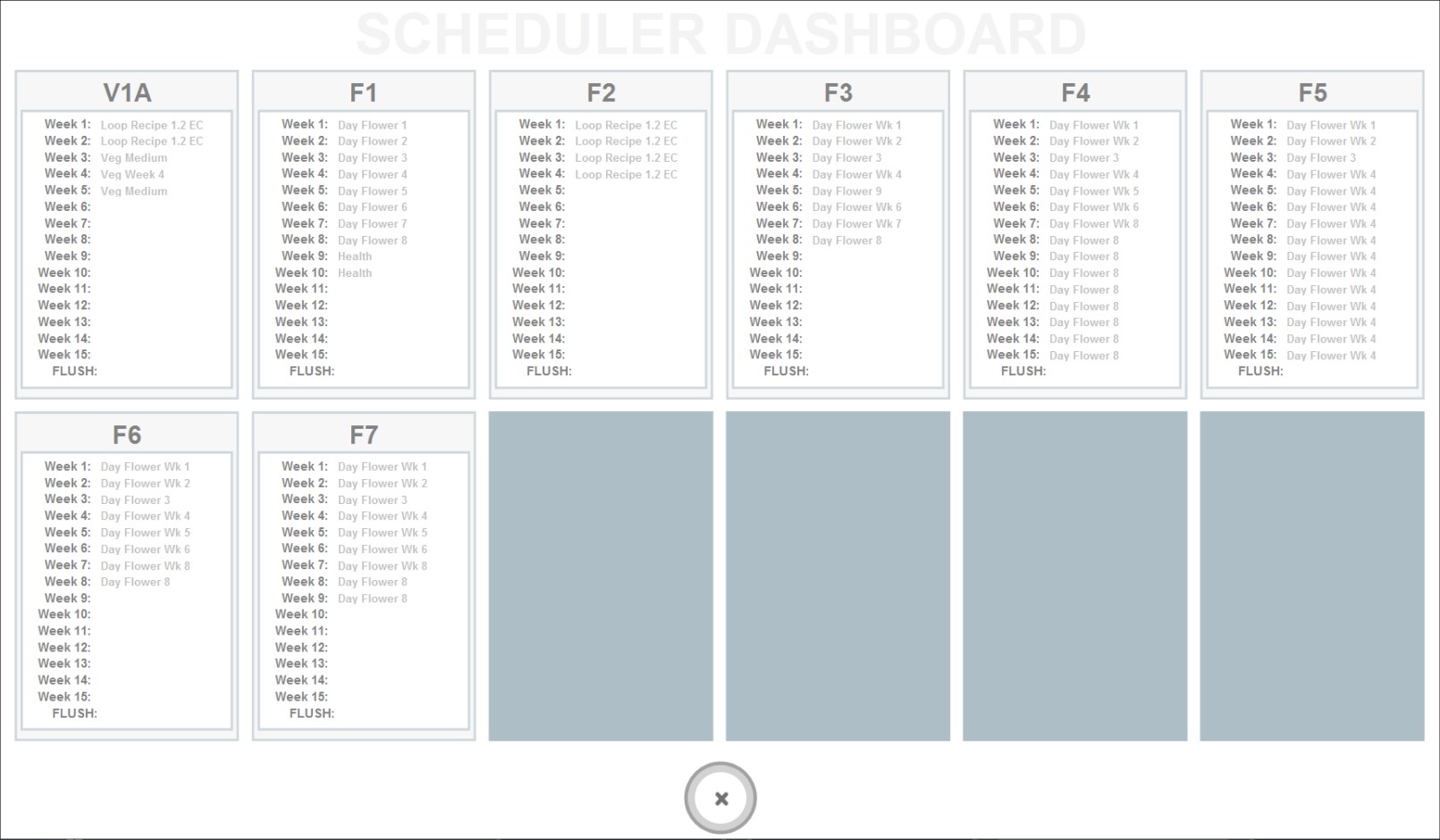
Scheduler Dashboard. Press this to reveal your facility's entire harvest schedule per room.
Feeding Queue. You can remove rooms from the queue by clicking "Feeding Queue" to reveal a popup which will allow you to deselect toggles for which room you'd like to remove from the queue:
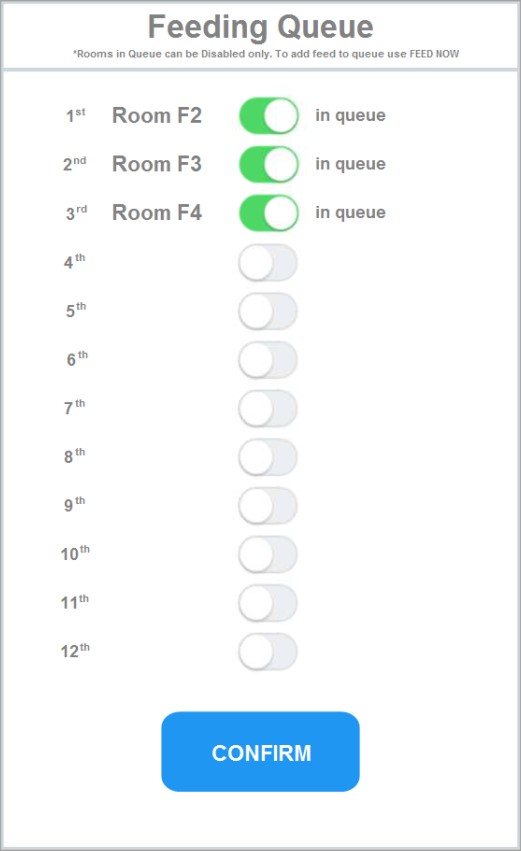
Note: It is not possible to re-order the queue. In order to do so, you must remove room feeds and re-add them later. For instance, if room F2, F3, and F4 are in the queue and you'd like to feed F4 first/next, you will need to deselect the toggles for rooms F2 and F3.
F4 will then feed, and since the schedules for F2 and F3 have been disrupted, you will need to manually add those feeds into the queue by using Feeding on Demand in the FEED MANAGER.
F4 will then feed, and since the schedules for F2 and F3 have been disrupted, you will need to manually add those feeds into the queue by using Feeding on Demand in the FEED MANAGER.


.svg)