

Inline SOFTWARE USER GUIDE
Dashboard
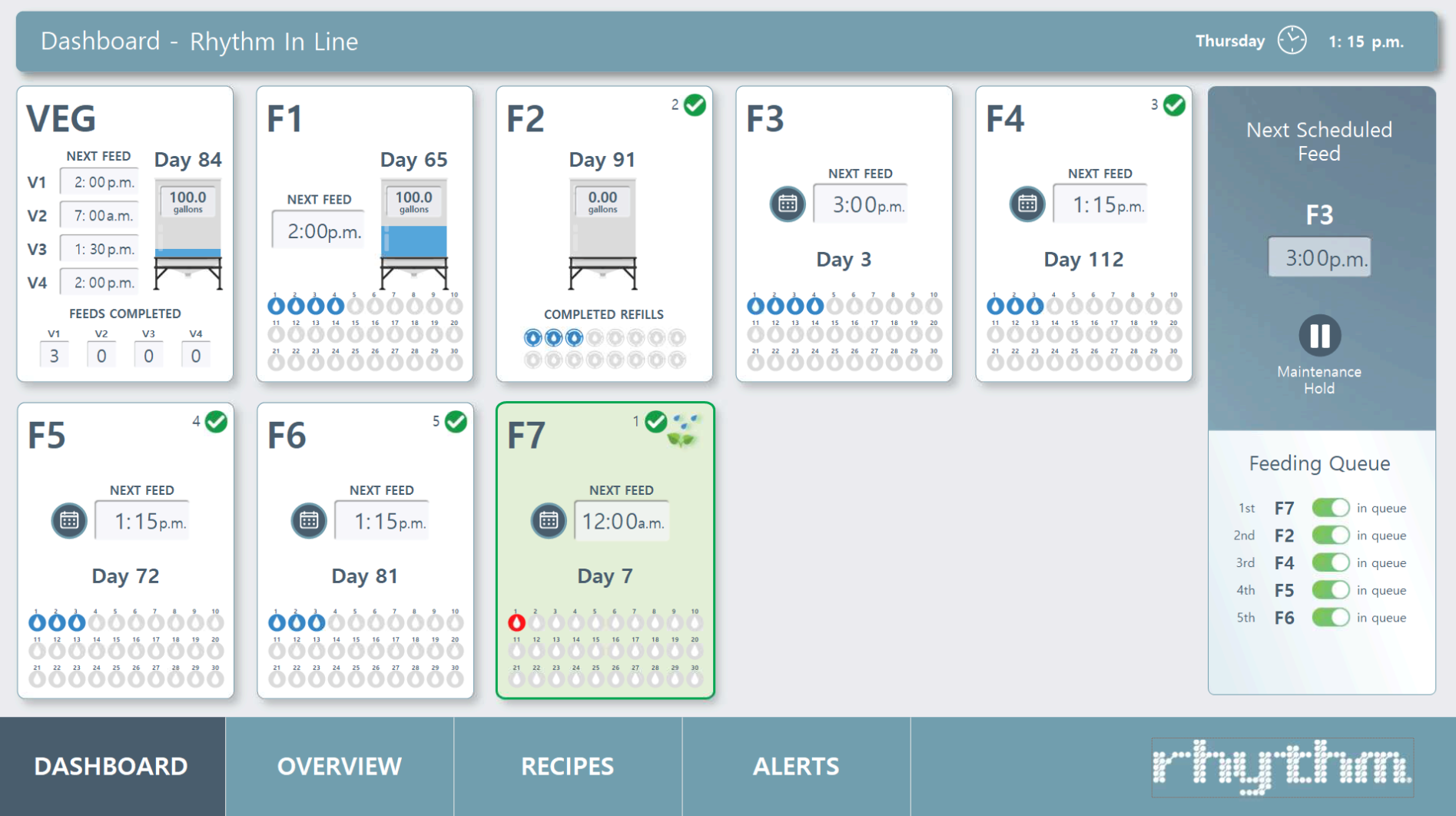

Date and Time are always displayed at the top right corner of the screen. This is pivotal to the system's inner workings so please set it using the Configuration Page.
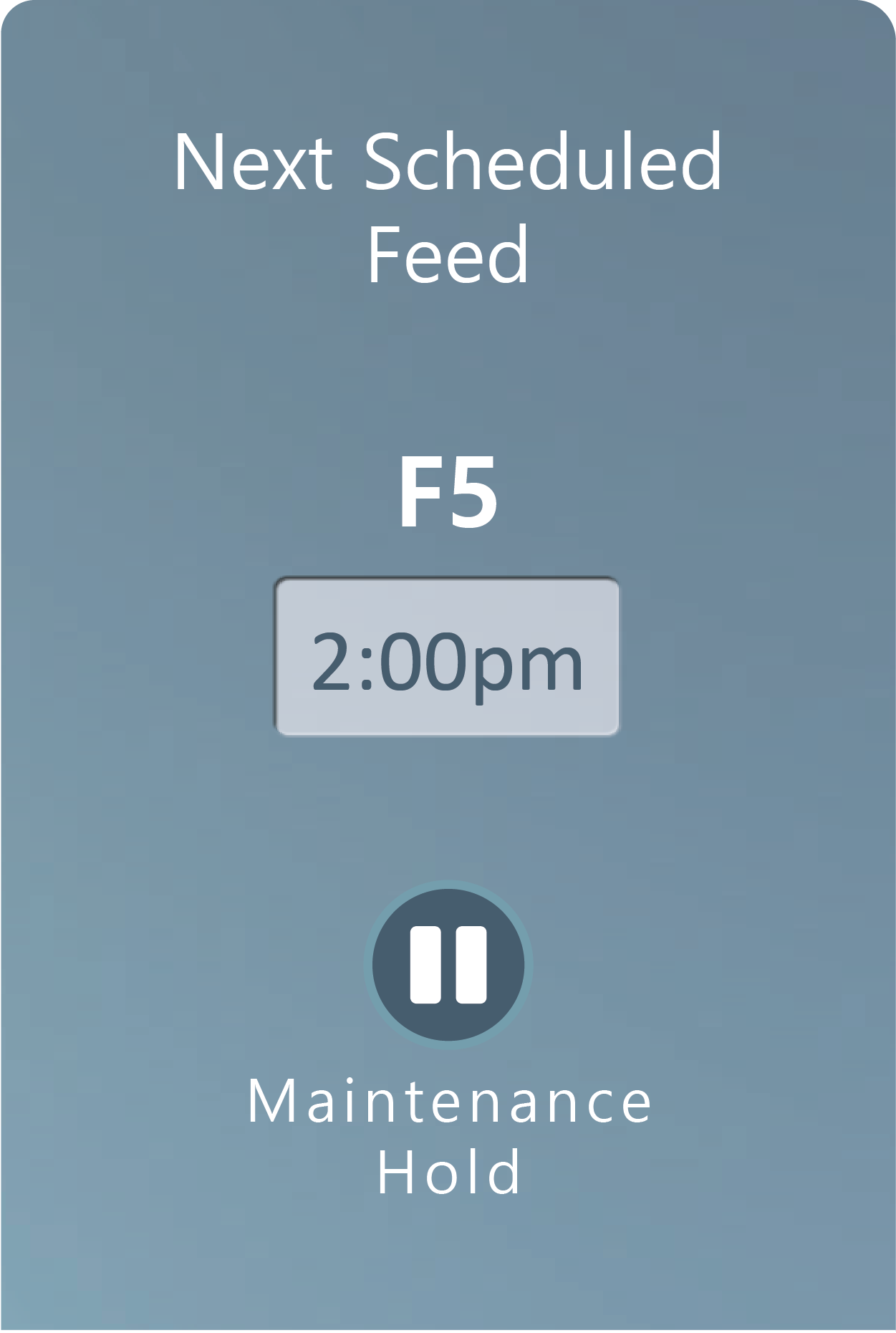
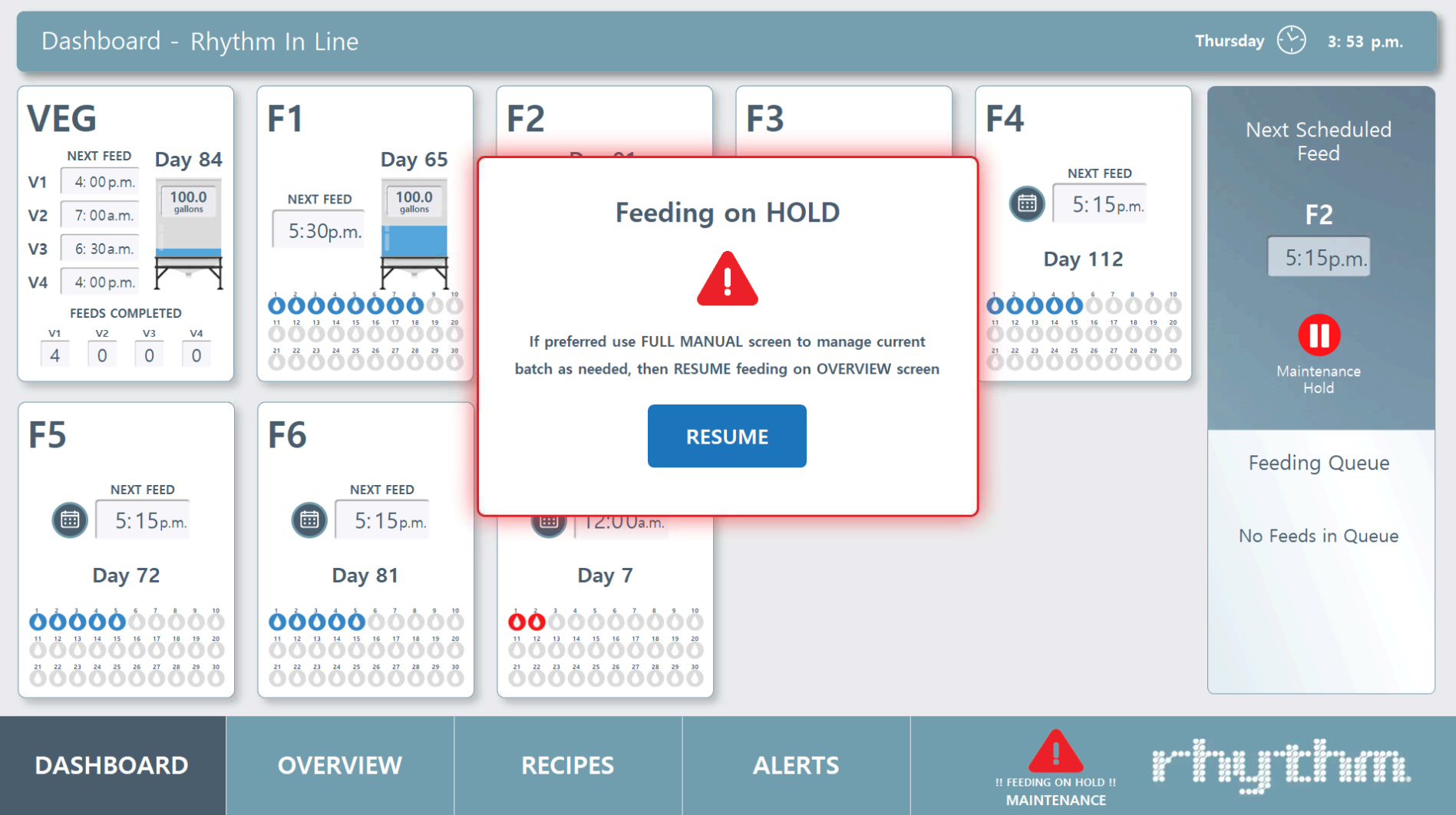
Next Scheduled Feed. This is an overhead view of your facility. The next room that will feed will be listed here.
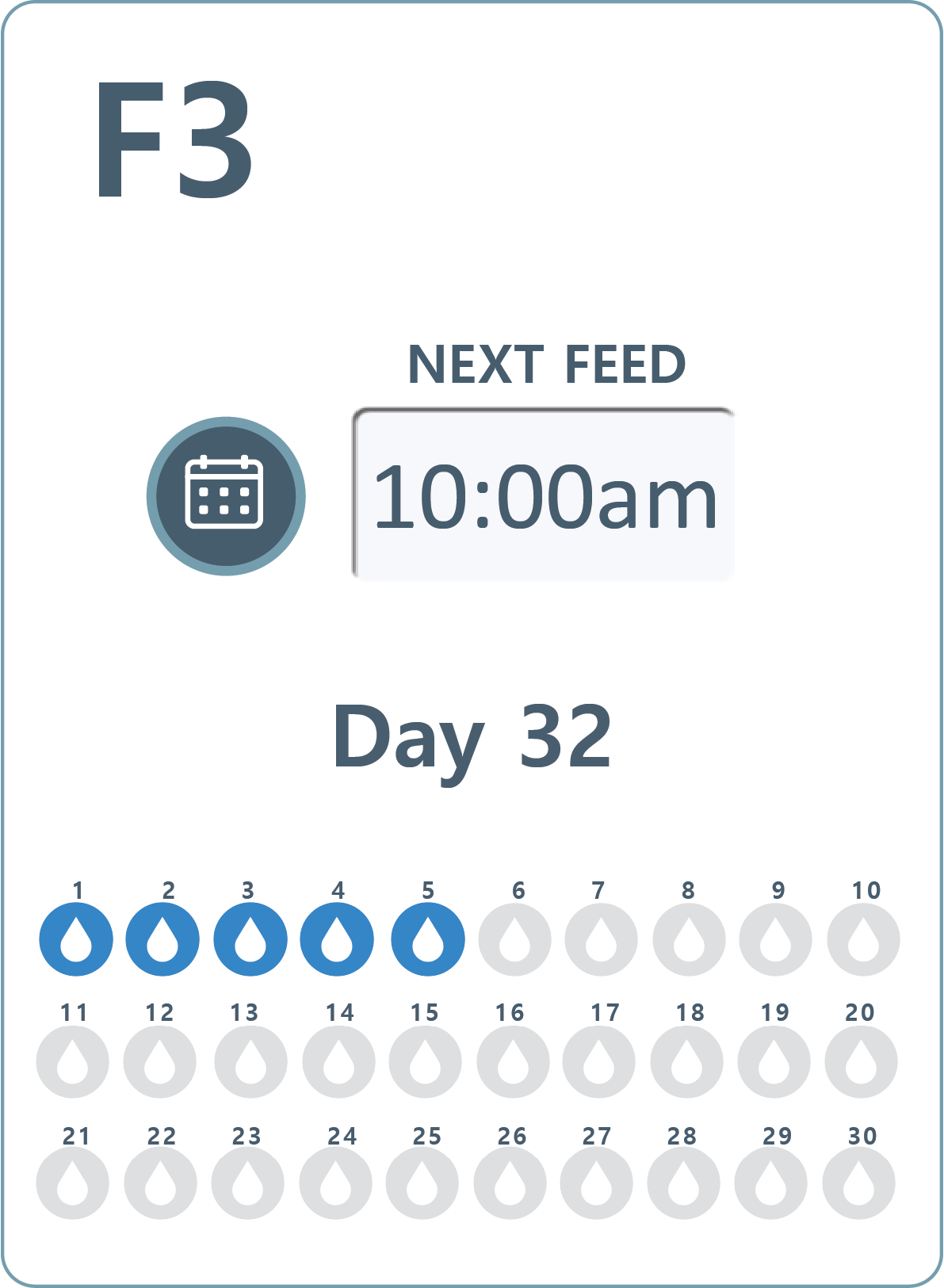
Room Card. The Dashboard shows a bird's eye view of which rooms are watering today, when the next feed is, and if the room is in the mixing queue or on a hold.
Clicking directly on the room card will take you to the Room's Overview Page where you can edit feeding details. You can also click on the blue Calendar icon beside the "Next Feed" clock.
Room Name is listed in upper left corner.
Next Feed will display the time the next feed is scheduled to feed.
Upper Right Corner Symbols Legend.
Clicking directly on the room card will take you to the Room's Overview Page where you can edit feeding details. You can also click on the blue Calendar icon beside the "Next Feed" clock.
Room Name is listed in upper left corner.
Next Feed will display the time the next feed is scheduled to feed.
Upper Right Corner Symbols Legend.

Room is in the queue to bed fed.

Room is currently being watered.

The room is on HOLD and will not be fed until hold is removed.

Tank is currently getting refilled.
1
The order in which the room will feed in the queue.
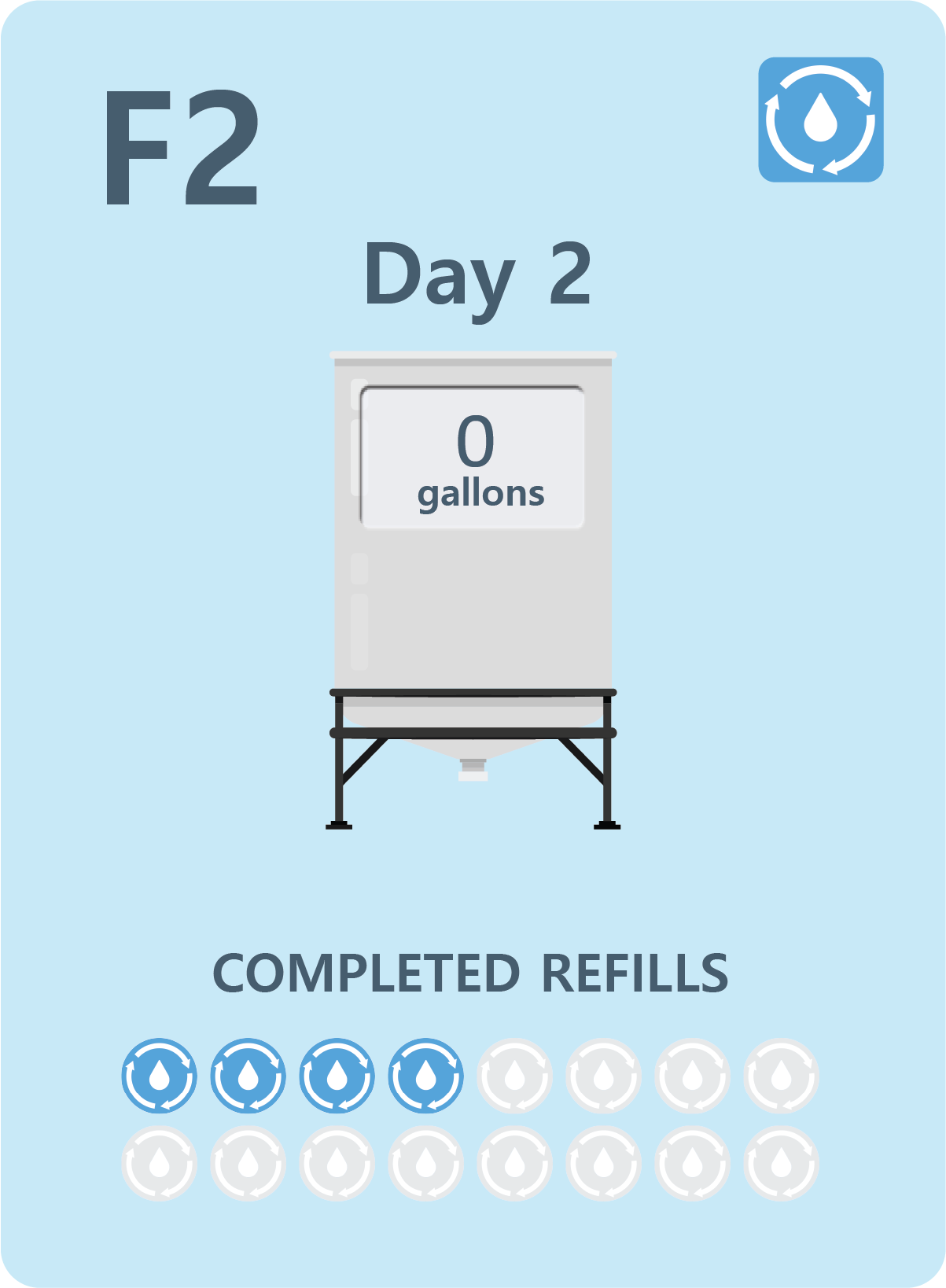
Room Card Variations. Rooms may have different appearances based on the type of feeding style (ie standard, day storage fed, any res any room model, or multiple rooms on one card.)
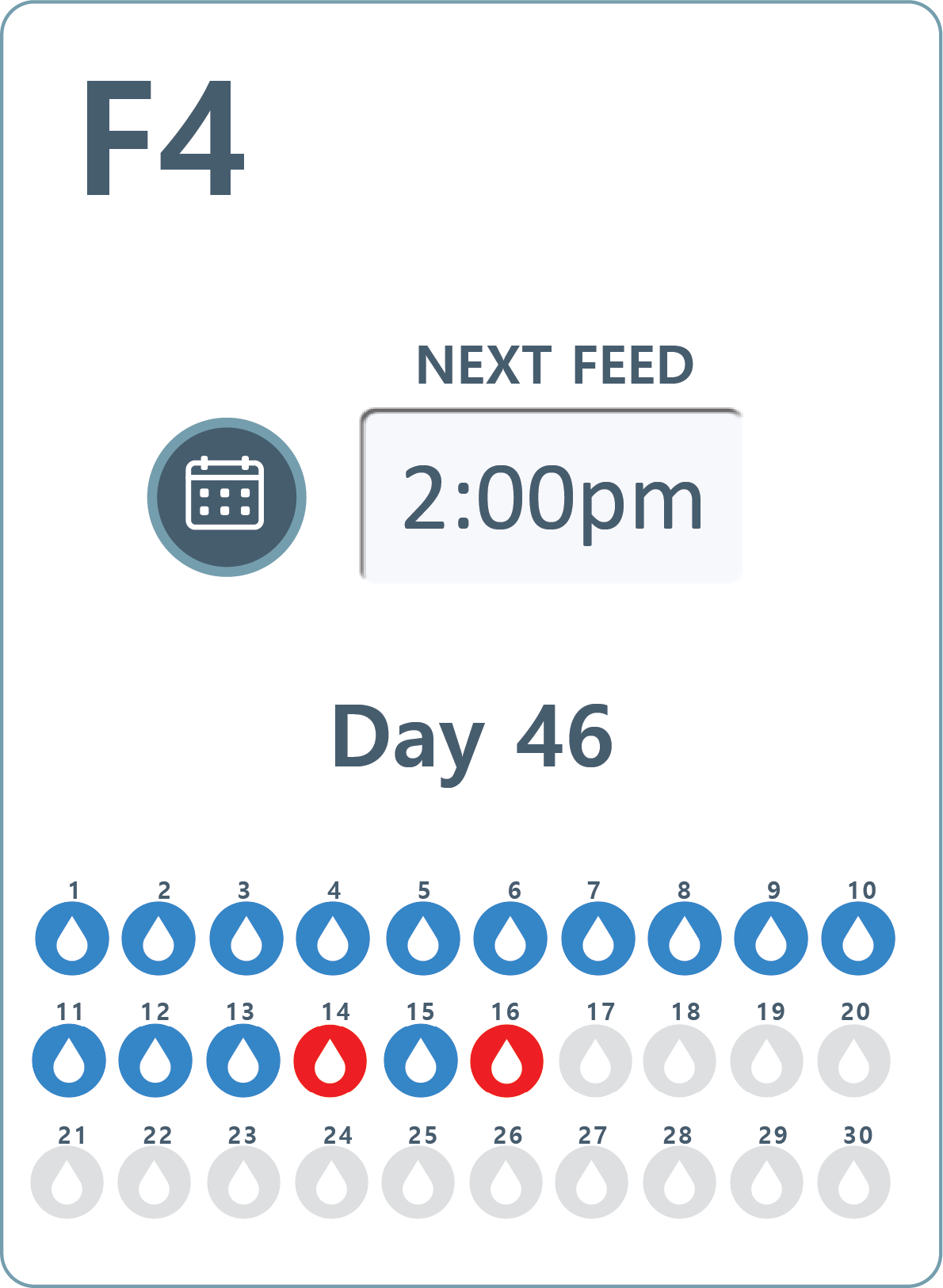
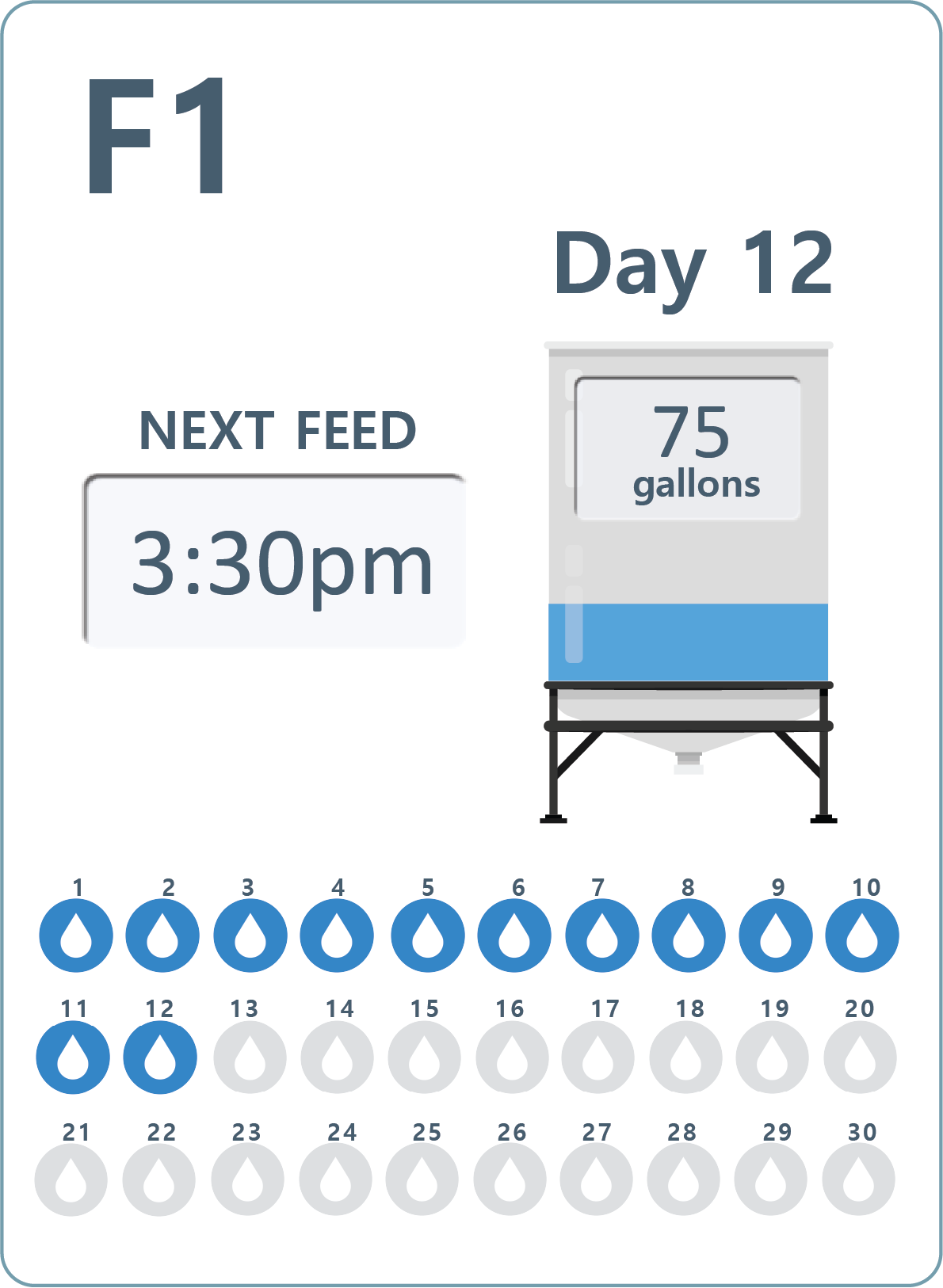

Standard room card.
'Any Res, Any Room' models only.
Rooms with day storage tanks.
Multiple rooms within one card. Green denotes it's currently feeding.
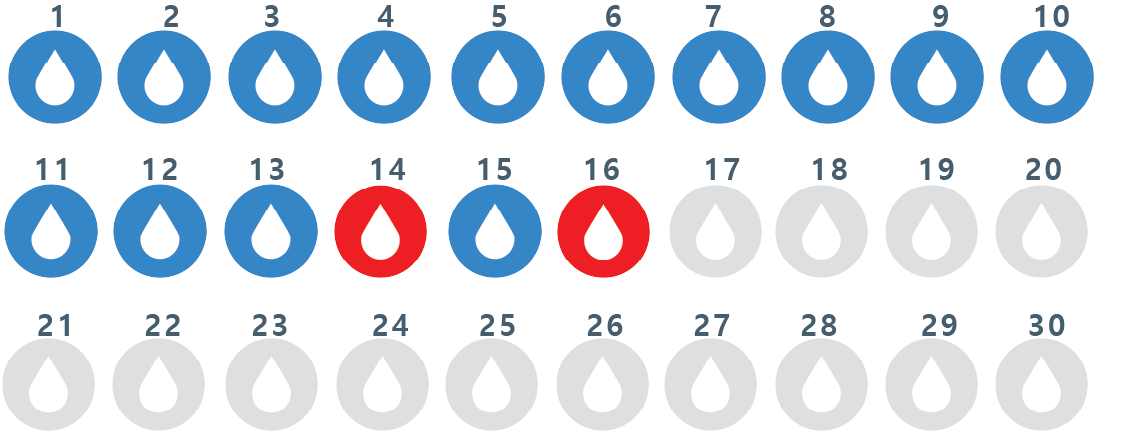
Feed Droplets. The water droplets on the bottom of the card represent the scheduled waterings PER DAY (up to 30 waterings per day). A blue droplet means the feeding was dispensed successfully. Droplets turn red when flow rates are outside of the configured MIN and MAX flow rate alarm settings. Please refer to the room's Feed Report to see a more detailed report of what happened by clicking on DASHBOARD > Room Card > Feed Report.
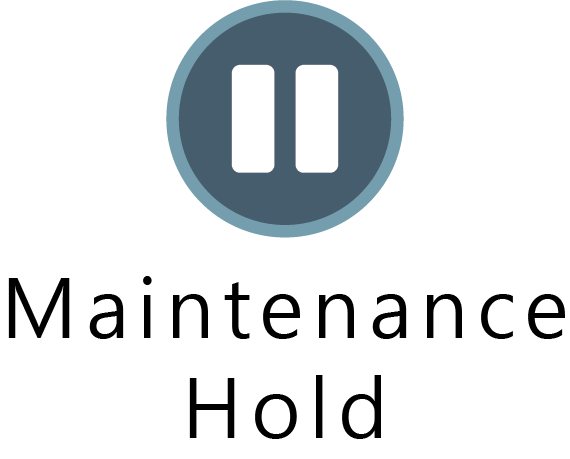
Maintenance Hold. Pressing this will place the system on complete hold. It is a quick way to hold the processes while you maintenance the system. If a feed is currently being mixed while you pressed hold, you will be prompted to go to FULL MANUAL mode to edit the current feed. You can do this by clicking Rhythm Logo (bottom right corner) > Full Manual.
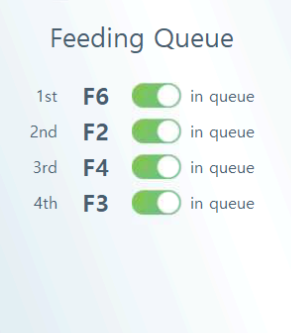
Feeding Queue. You can remove rooms from the queue by deselecting the toggles for which room you'd like to remove from the queue. You cannot add rooms to queue using this function, you must go to the respective Room page and add a feed there.
Feeding and/or Reservoir Filling Events will occur at the time and day they are scheduled. If the Inline Series AFS is currently managing an event, any subsequent events that come in will be put in a queue. That queue will be displayed on the dashboard. Events will queue in the order that they come in. If multiple events are scheduled at the exact time, the events will occur in the order of the rooms shown on your Dashboard (Top Left to Top Right, then Bottom left to Bottom Right).
Feeding and/or Reservoir Filling Events will occur at the time and day they are scheduled. If the Inline Series AFS is currently managing an event, any subsequent events that come in will be put in a queue. That queue will be displayed on the dashboard. Events will queue in the order that they come in. If multiple events are scheduled at the exact time, the events will occur in the order of the rooms shown on your Dashboard (Top Left to Top Right, then Bottom left to Bottom Right).
Note: It is not possible to re-order the queue. In order to do so, you must remove room feeds and re-add them later. For instance, if room F2, F3, and F4 are in the queue and you'd like to feed F4 first/next, you will need to deselect the toggles for rooms F2 and F3.
F4 will then feed, and since the schedules for F2 and F3 have been disrupted, you will need to manually add those feeds into the queue by using Feeding on Demand in the FEED MANAGER.
F4 will then feed, and since the schedules for F2 and F3 have been disrupted, you will need to manually add those feeds into the queue by using Feeding on Demand in the FEED MANAGER.


.svg)