

INLINE SOFTWARE USER GUIDE
Recipe Builder
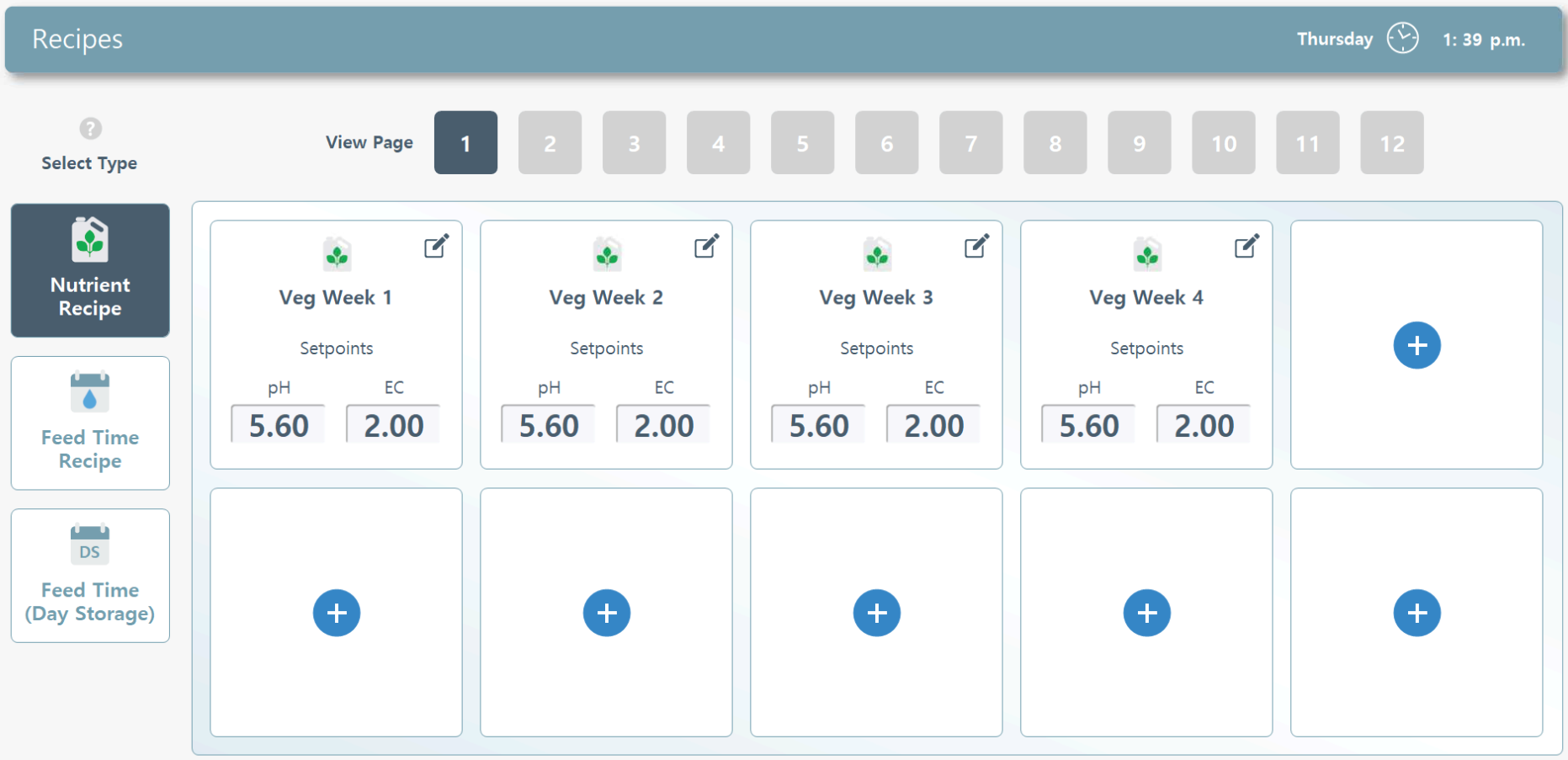
Click the corresponding number icon to jump to its section.

Recipe Navigation

Recipe Cards

Editing Nutrient Recipes

Editing Feed Time Recipes (Direct Feed)

Editing Feed Time Recipes (Day Storage)
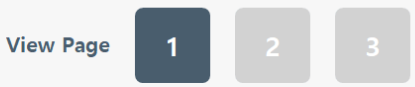
Page Navigation. Navigate your recipe pages 1-12 by using the left and right navigation arrows. The software allows for up to 120 recipes. Keep in mind that one room may have several recipes depending on factors like EC levels, week of room, nutrients added, etc.
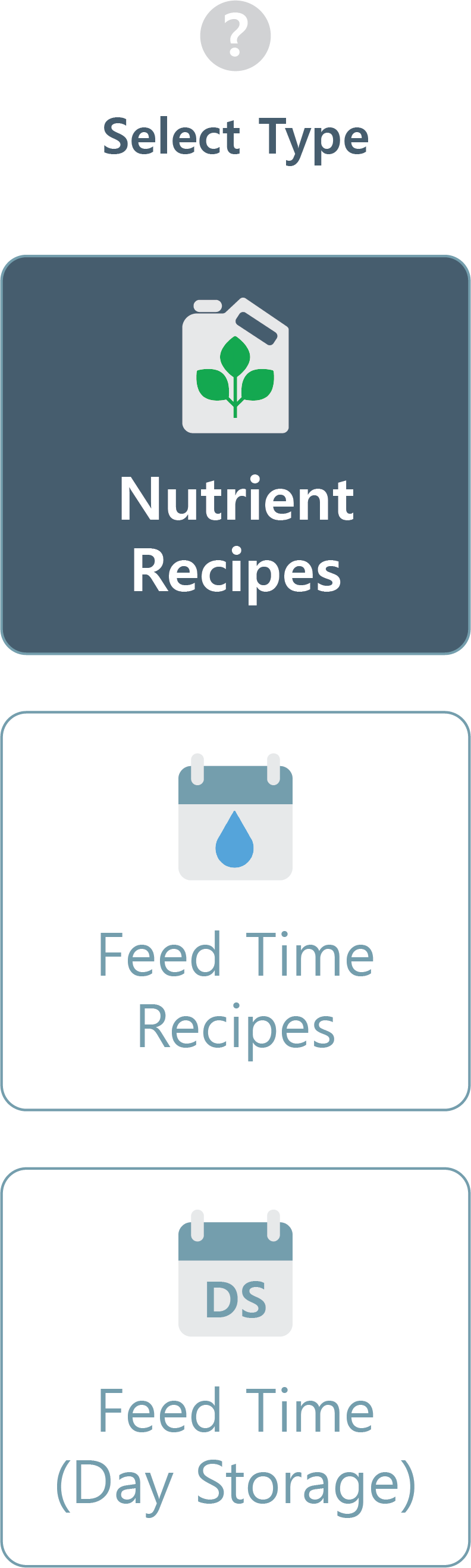
Recipe Type Selection. Your recipes are split into when to feed and what to feed. From the right menu you can select the type of feed you'd like to schedule.
You must create nutrient recipes in the Recipe Log in order for the system to run; these are the different nutrient schedules you are going to have the machine prepare.
You have the option of setting up Feed Time Recipes in the Recipe Log. It is not required for the system to run. You will have a 2nd option when scheduling the rooms for when they will feed, to setup each room in their local feed manager. For Feed Time Recipes; If you are feeding the rooms direct from the AFS, use the 1st selection: Feed Time Recipes. If you are feeding rooms from Day Storage, use the 2nd selection: (Feed Time (Day-Storage).
Nutrient Recipes. A nutrient recipe is comprised of all the individual inputs (ingredients) configured to dose together in a particular batch. This is the “what” is being delivered to the plants. Any unique combination of nutrients, or differences in pH or EC values, should be its own recipe.
Feed Time Recipes (AFS). This selection is used if direct feeding from the AFS. A feed time recipe is comprised of all the individual feed events scheduled to run for a given day. This is the “when” for nutrient recipes being delivered to plants. Any unique combination of feed times, durations, frequencies, or quantities, should be its own recipe.
Feed Time Recipes (Day Storage). This selection has the same distinction of the AFS Feed Time Recipes, except it is used for Day Storage Tanks only.
You must create nutrient recipes in the Recipe Log in order for the system to run; these are the different nutrient schedules you are going to have the machine prepare.
You have the option of setting up Feed Time Recipes in the Recipe Log. It is not required for the system to run. You will have a 2nd option when scheduling the rooms for when they will feed, to setup each room in their local feed manager. For Feed Time Recipes; If you are feeding the rooms direct from the AFS, use the 1st selection: Feed Time Recipes. If you are feeding rooms from Day Storage, use the 2nd selection: (Feed Time (Day-Storage).
Nutrient Recipes. A nutrient recipe is comprised of all the individual inputs (ingredients) configured to dose together in a particular batch. This is the “what” is being delivered to the plants. Any unique combination of nutrients, or differences in pH or EC values, should be its own recipe.
Feed Time Recipes (AFS). This selection is used if direct feeding from the AFS. A feed time recipe is comprised of all the individual feed events scheduled to run for a given day. This is the “when” for nutrient recipes being delivered to plants. Any unique combination of feed times, durations, frequencies, or quantities, should be its own recipe.
Feed Time Recipes (Day Storage). This selection has the same distinction of the AFS Feed Time Recipes, except it is used for Day Storage Tanks only.
2. Recipe Cards
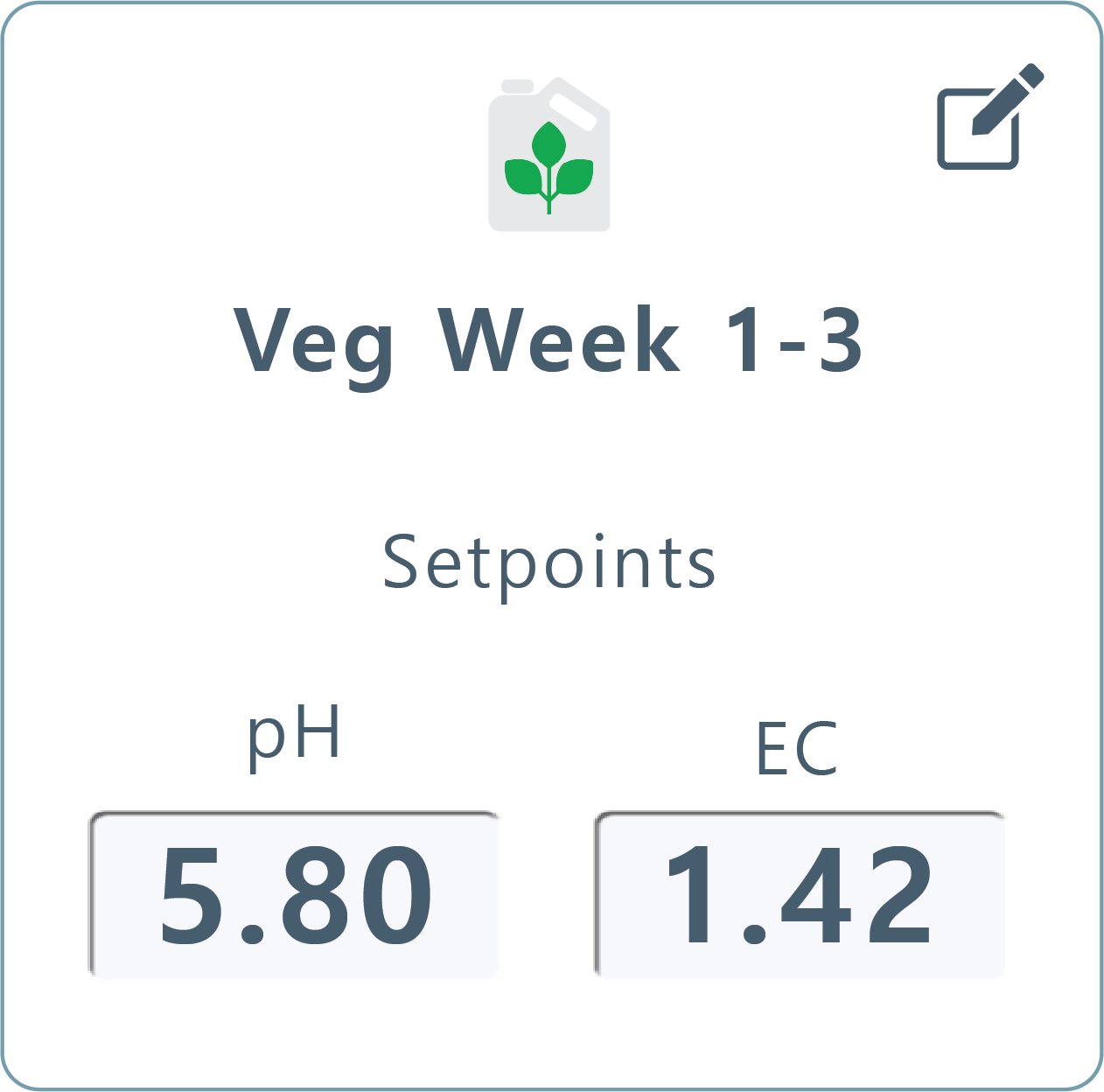
Nutrient Recipe Card. The nutrient card will display the recipe type icon (green leaf on a nutrient bottle), recipe title, and the pH and EC setpoints.
Clicking on a nutrient recipe card will reveal the nutrient set for that specific recipe.
Clicking on a nutrient recipe card will reveal the nutrient set for that specific recipe.
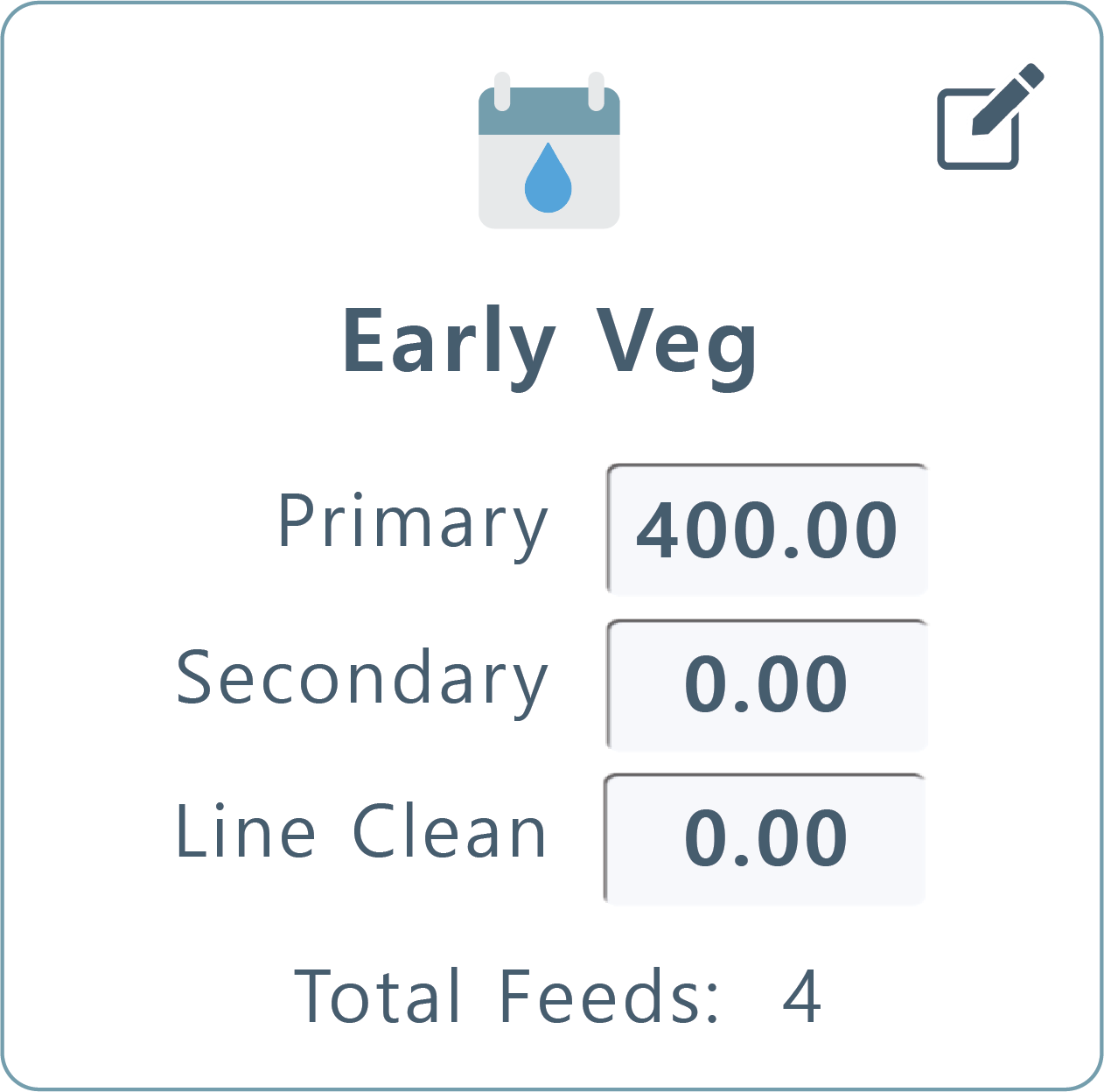
Feed Times Recipe Card. The feed times card will display the recipe type icon (a calendar icon with a blue water droplet), recipe title, the primary recipe's volume total in gallons, the secondary recipe's volume total (if applicable), and the line clean volume (if applicable), and the total amount of feed cycles (watering events) that are scheduled.
Clicking on a feed times recipe card will reveal the feed cycles set for that specific recipe.
Clicking on a feed times recipe card will reveal the feed cycles set for that specific recipe.
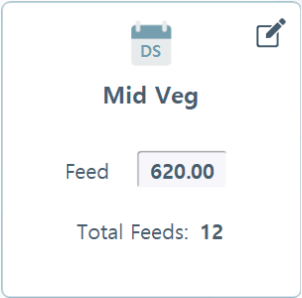
Feed Times Recipe (Day Storage) Card. The feed times card for Day Storage ONLY will display the recipe type icon (a calendar icon with "DS"), recipe title, the total feed volume amount in gallons, and the total amount of feed cycles (watering events) that are scheduled.
Clicking on a feed times (day storage) recipe card will reveal the feed cycles set for that specific recipe.
Clicking on a feed times (day storage) recipe card will reveal the feed cycles set for that specific recipe.

Add Recipe. Click the blue + icon card to add a nutrient recipe to your feed scheduler. You can set the dosages, types, EC and pH setpoints inside the Add Recipe menu.
Clicking on a Nutrient Recipe card will reveal the nutrient setup page:
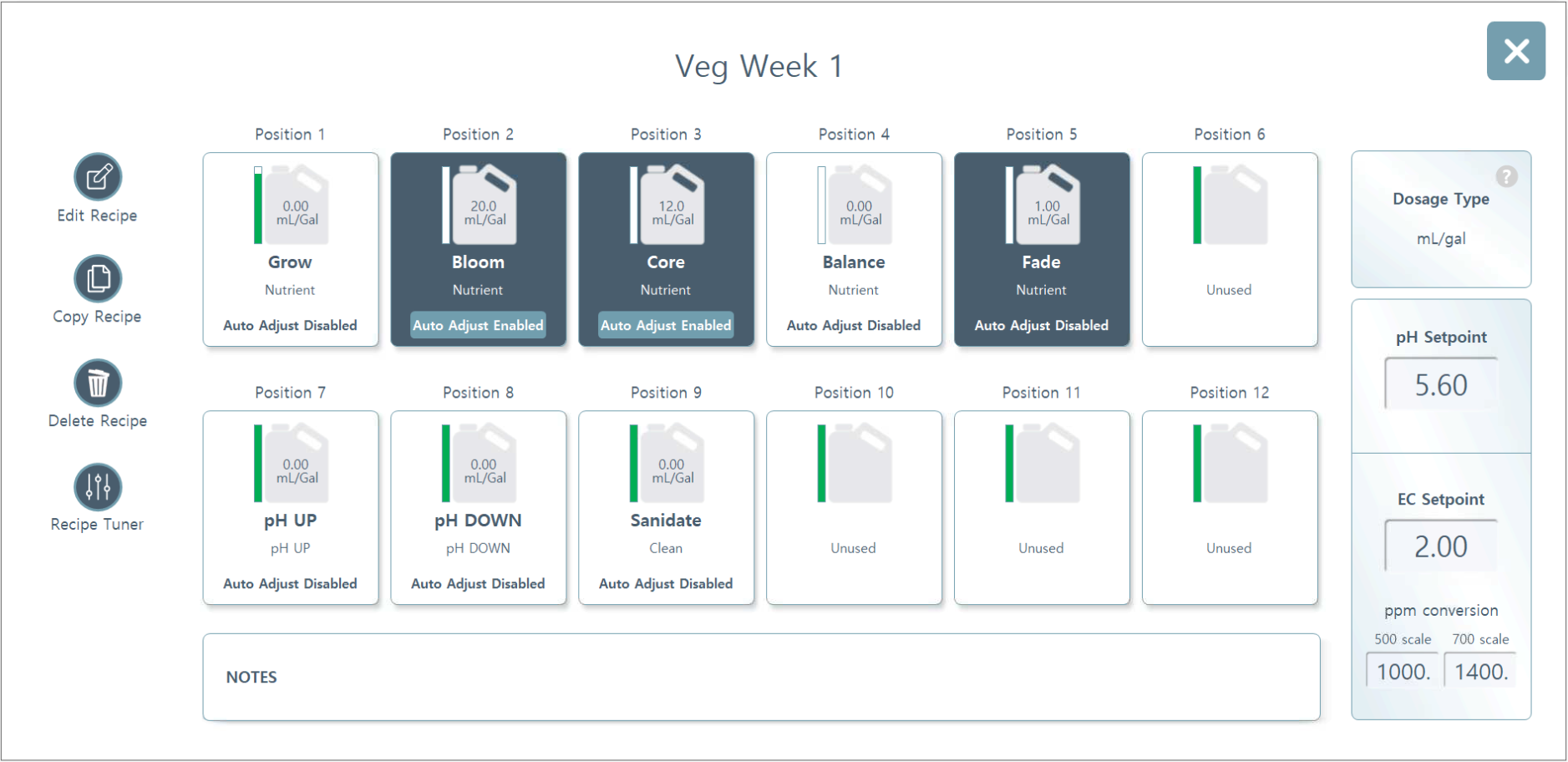
Recipe Name. This is the name of your recipe. You can change this in "Edit Recipe". See Editing and Adding Recipes below for more details.
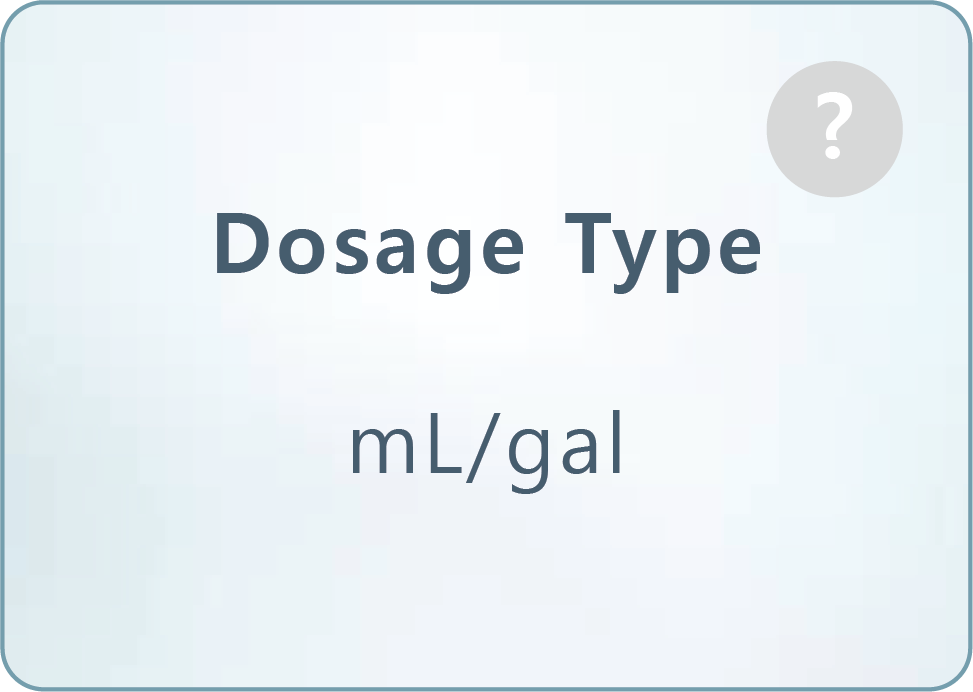
Dosage Type. Recipes can be configured to use ml per gallon, or percentage (%) based nutrient injection.
Note: Percentage based dosage is not usually recommended because it requires more tuning in order for the system to figure out the desired pH & EC setpoints. If percentage based dosing is to be utilized, the Recipe Tuner MUST be used to tune each recipe in for pH & EC, so the system can learn those values.
Note: Percentage based dosage is not usually recommended because it requires more tuning in order for the system to figure out the desired pH & EC setpoints. If percentage based dosing is to be utilized, the Recipe Tuner MUST be used to tune each recipe in for pH & EC, so the system can learn those values.
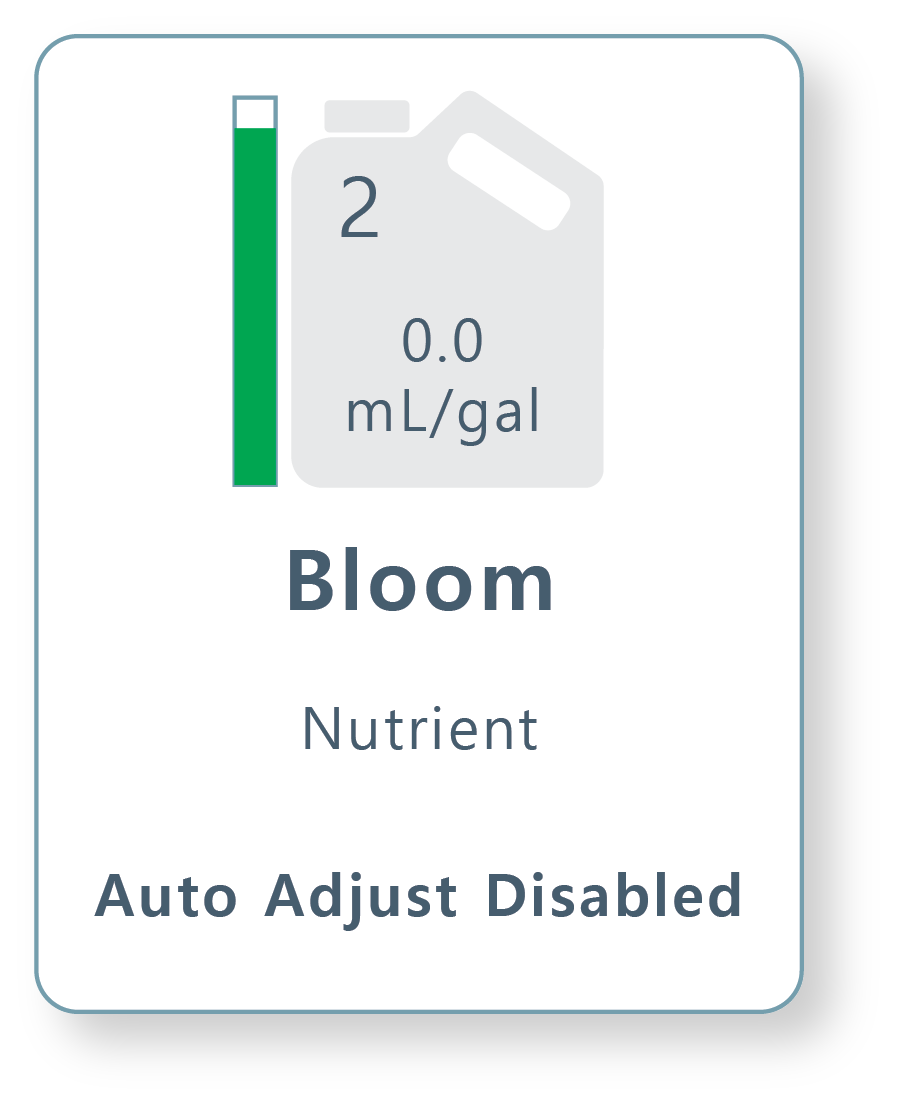
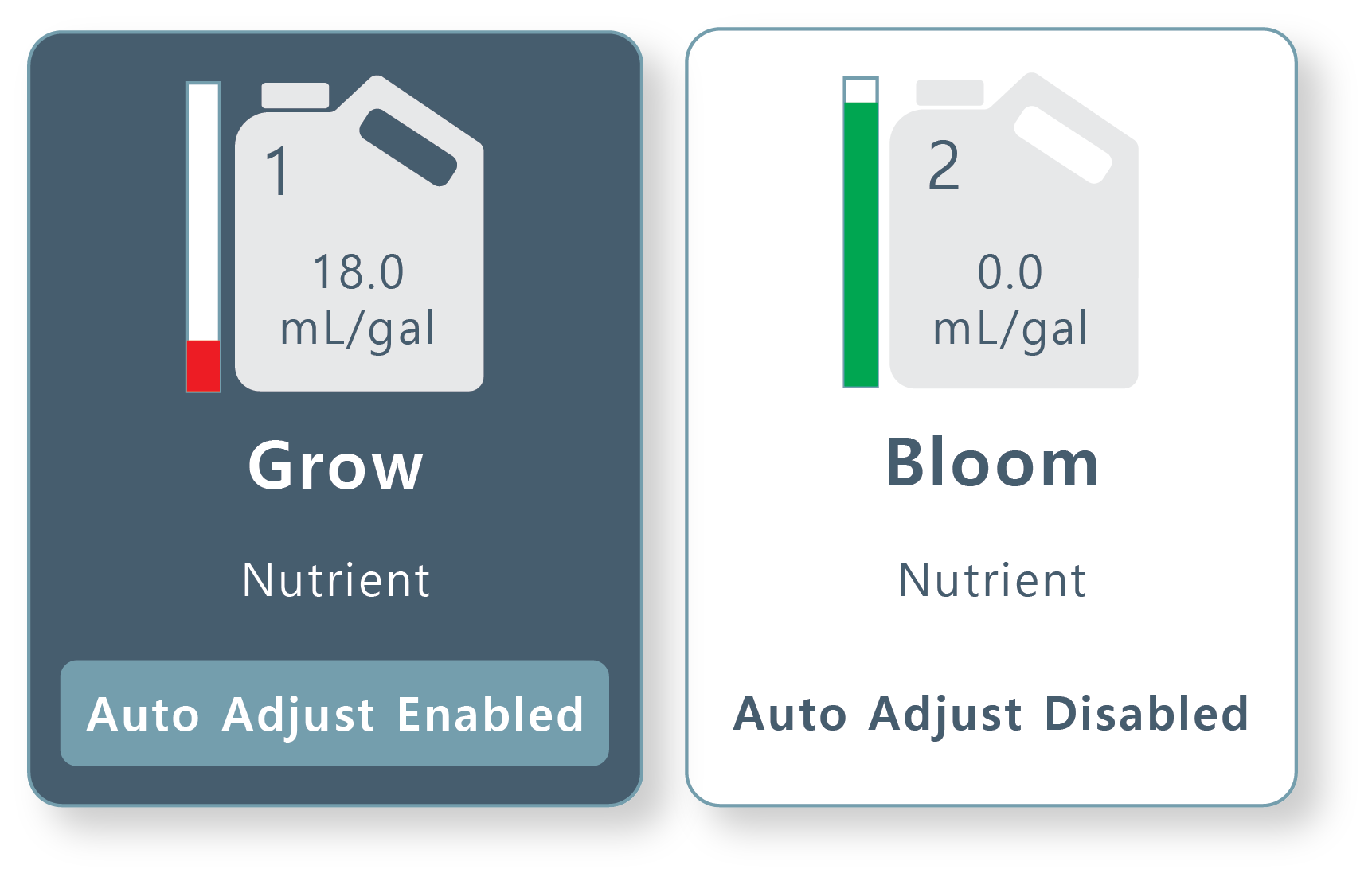
Nutrients. After nutrients have been setup in Nutrient Configuration (see config link). Those that have been setup will appear as options in the Edit Nutrient Recipe page. Each card displays the nutrient Name, Type, Position, Level Indicator and Dosing Rate in mL/gal. It also shows if the particular position has Auto Adjust enabled or disabled.
Edit Recipe. Edit recipes anytime by pressing this button. See Editing Nutrient Recipe below for more details on how to add or change a recipe.

Copy Recipe. If you'd like to quickly add a recipe that only differs in minor details from another recipe, instead of creating a whole new recipe each time, you can quickly copy the recipe to any empty slot location.
A popup will appear when you press "Copy Recipe". Select any empty slot to place the copied recipe.
A popup will appear when you press "Copy Recipe". Select any empty slot to place the copied recipe.


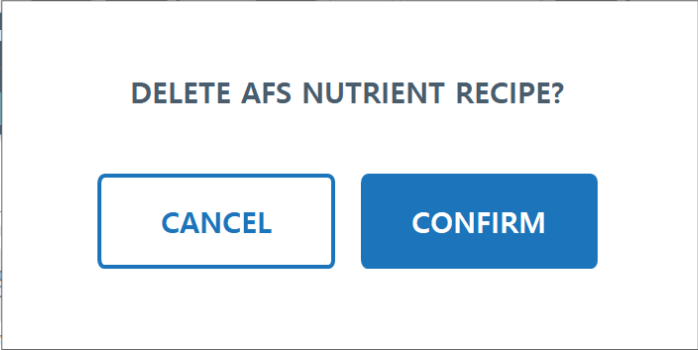
Delete Recipe. Delete your recipe by pressing this button. A popup will appear to confirm the choice.

Recipe Tuner. The recipe tuner is a feature that allows the machine and user to tune-in new recipes to hit target pH and EC setpoints before they are run to plants. See Recipe Tuner section for more info,
Please Note: When a feed is in progress, Recipe Tuner will not be available:
Please Note: When a feed is in progress, Recipe Tuner will not be available:
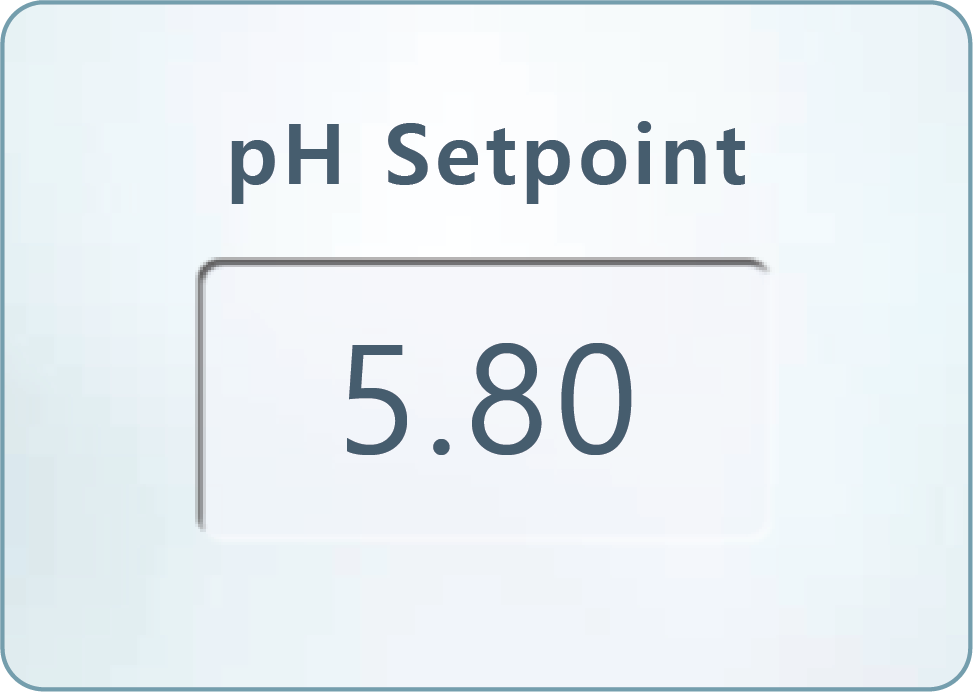
pH Setpoint. Your pH settings will display here. You can change the setpoint and its bandwidth, ratios (amount of pH up or down that will be dosed when attempting to stabilize), and whether or not you would like to disable this feature.
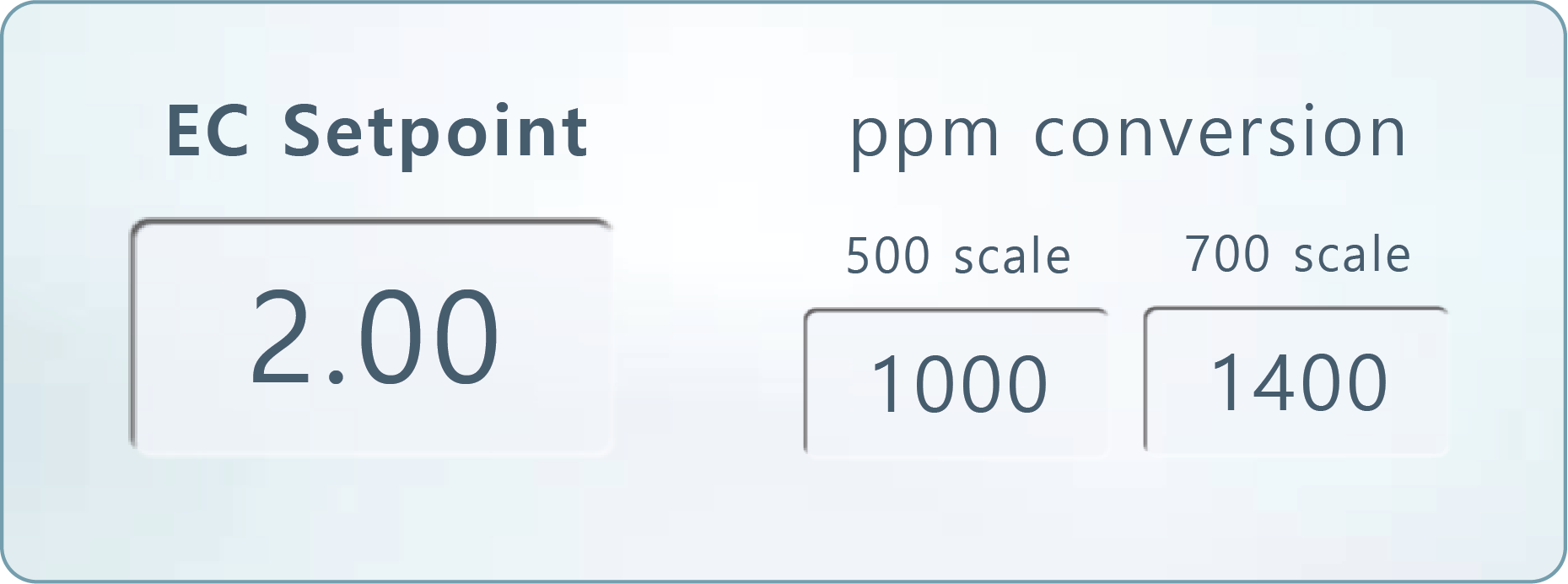
EC Setpoint. Your EC settings will display here. You can change the setpoint, the ppm 500 and ppm 700 scale conversion values.

Notes. Add notes to your recipe to remind yourself or your team members of important details. You can add notes by editing the recipe and entering them on PAGE 3.
3. Editing Nutrient Recipes
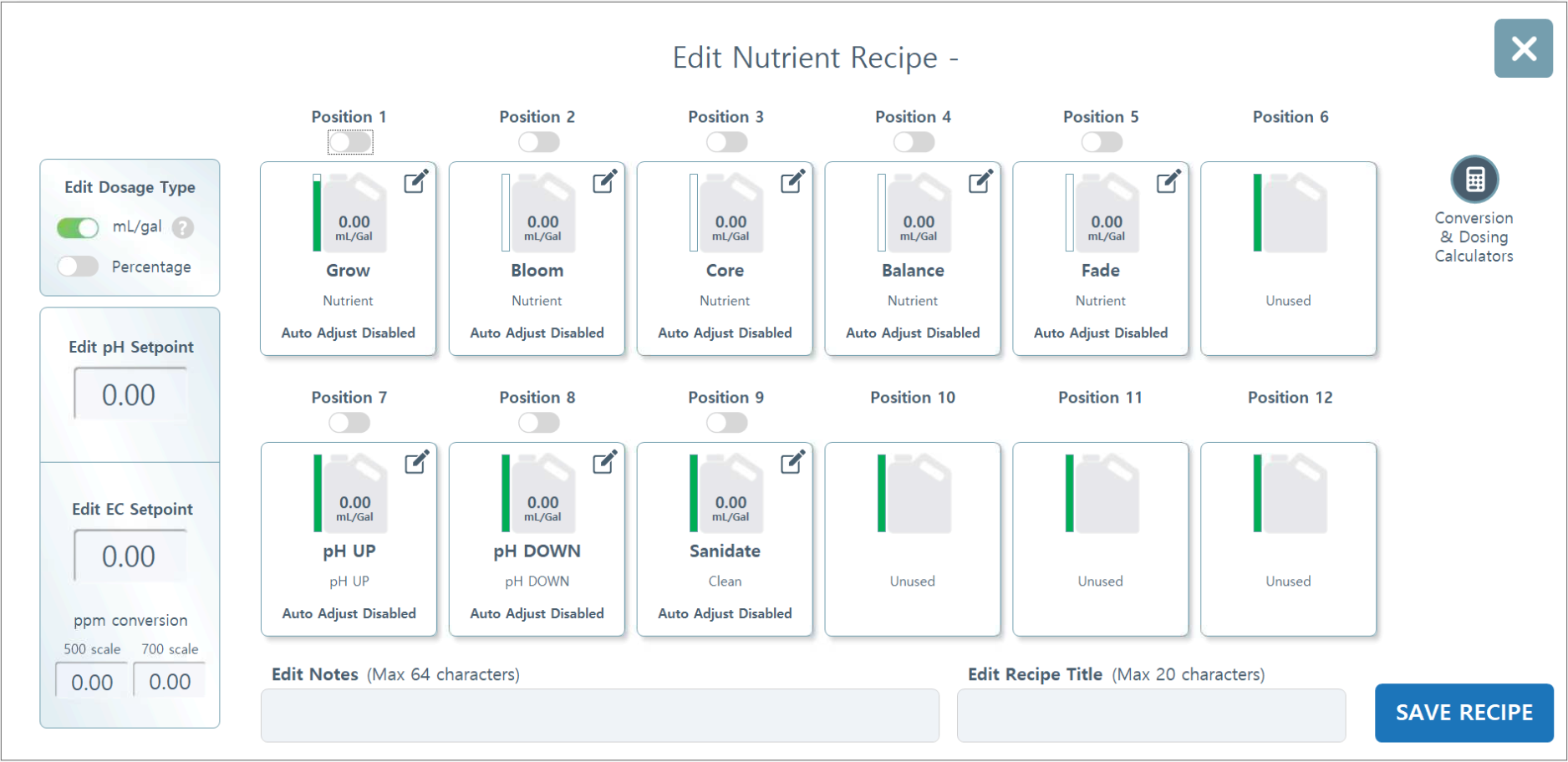
Editing Nutrient Recipes. First, select if the recipe will be setup to dose by mL/gal or as a percentage. We recommend setting up all recipes using mL/gal. If using percentage, the recipe must be tuned using the Recipe Tuner to figure out the EC & pH values. Do not run a recipe setup with percentages without going through this process, it will be off.
Toggle on the positions you want to include in the recipe being created.
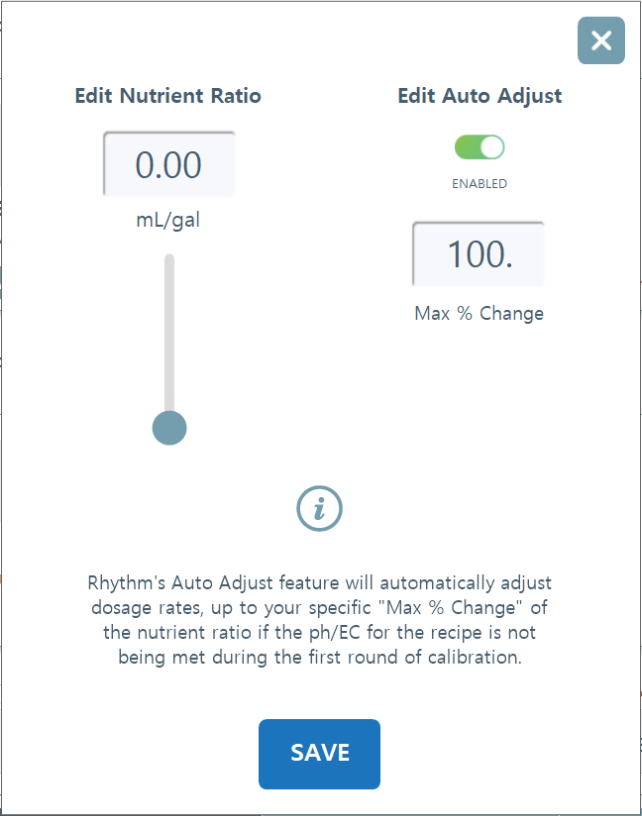
Select each position card and in the popup fill in the dosing rate (mL/gal), and enable or disable Auto Adjust. If Auto Adjust is enabled, set the Max % Change. The Max % Change is the percent of change allowed off of the setpoint. For example, if you have an input dosing at 10mL/gal, a 50% Max % Change would allow the system to automatically adjust the recipe, if required, down to 5mL/gal and up to 15mL/gal. See Auto Adjust section below for more information on this feature.
Set the pH setpoint you want the recipe to run at. Set the EC setpoint you want to the recipe to run at.
Editing Dosage Type. Recipes can be configured to use ml per gallon, or percentage (%) based nutrient injection. Percentage based dosage is not usually recommended because it requires more tuning in order for the system to figure out the desired pH & EC setpoints. If percentage based dosing is to be utilized, the Recipe Tuner MUST be used to tune each recipe in for pH & EC, so the system can learn those values.
Auto Adjust Feature. When creating a new recipe or editing an existing one, you have the option to configure each nutrient position to run using this Auto Adjust feature. When enabled, the Auto Adjust feature allows the Rhythm Inline AFS software to modulate the dosing rates of each input in order to achieve the pH & EC setpoints of the recipe. If Auto Adjust is enabled, you must set the Max % Change. The Max % Change is the percent of change allowed off of the setpoint.For example, if you have an input dosing at 10mL/gal, a 50% Max % Change would allow the system to automatically adjust the recipe, if required, down to 5mL/gal and up to 15mL/gal. In application, once enabled, when making batches the Inline AFS will automatically make these adjustments to hit setpoints. If adjustments are made, the system will save the adjusted values to the recipe for future use.
Toggle on the positions you want to include in the recipe being created.
Select each position card and in the popup fill in the dosing rate (mL/gal), and enable or disable Auto Adjust. If Auto Adjust is enabled, set the Max % Change. The Max % Change is the percent of change allowed off of the setpoint. For example, if you have an input dosing at 10mL/gal, a 50% Max % Change would allow the system to automatically adjust the recipe, if required, down to 5mL/gal and up to 15mL/gal. See Auto Adjust section below for more information on this feature.
Set the pH setpoint you want the recipe to run at. Set the EC setpoint you want to the recipe to run at.
Editing Dosage Type. Recipes can be configured to use ml per gallon, or percentage (%) based nutrient injection. Percentage based dosage is not usually recommended because it requires more tuning in order for the system to figure out the desired pH & EC setpoints. If percentage based dosing is to be utilized, the Recipe Tuner MUST be used to tune each recipe in for pH & EC, so the system can learn those values.
Auto Adjust Feature. When creating a new recipe or editing an existing one, you have the option to configure each nutrient position to run using this Auto Adjust feature. When enabled, the Auto Adjust feature allows the Rhythm Inline AFS software to modulate the dosing rates of each input in order to achieve the pH & EC setpoints of the recipe. If Auto Adjust is enabled, you must set the Max % Change. The Max % Change is the percent of change allowed off of the setpoint.For example, if you have an input dosing at 10mL/gal, a 50% Max % Change would allow the system to automatically adjust the recipe, if required, down to 5mL/gal and up to 15mL/gal. In application, once enabled, when making batches the Inline AFS will automatically make these adjustments to hit setpoints. If adjustments are made, the system will save the adjusted values to the recipe for future use.
Conversion & Dosing Calculators. This is just a helpful tool within the software to help operators do a common conversion from grams per gal to mL per gallon, and to establish the operating parameters of the Rhythm inline High and Low dose nutrient pumps.
The first card is the conversion tool. Input the stock tank grams per gallon value as provided by the nutrient manufacturer for making a stock tank. Next input the feeding rate in grams per gallon as provided by the nutrient manufacturer. The calculated value is this rate in mL per gallon.
The middle card establishes the max flow rate that can be delivered through the system at a particular mL/gallon nutrient injection ratio for Large and Small pumps respectively. Example: If you put a value of 50 mL/gal, the system will calculate that the max GPM for the large pump to handle that dosing rate would be 28.22GPM. Any higher than this flow rate, the pump could not keep up.
The third card establishes the min and max dosing rates, for the Large and Small pumps respectively, for a given flow rate. Example: If you put a value of 20 GPM, the system will calculate the minimum dosing rate of 1.78mL/gal and a maximum of 105.8mL/gal for the Large Pump. And a minimum of 0.12mL/gal and maximum of 7.86ml/gal for the Large pump. So at 20GPM flow rate or delivery rate through the Inline AFS, these are the dosing rate ranges that will work for that particular flow rate.
The first card is the conversion tool. Input the stock tank grams per gallon value as provided by the nutrient manufacturer for making a stock tank. Next input the feeding rate in grams per gallon as provided by the nutrient manufacturer. The calculated value is this rate in mL per gallon.
The middle card establishes the max flow rate that can be delivered through the system at a particular mL/gallon nutrient injection ratio for Large and Small pumps respectively. Example: If you put a value of 50 mL/gal, the system will calculate that the max GPM for the large pump to handle that dosing rate would be 28.22GPM. Any higher than this flow rate, the pump could not keep up.
The third card establishes the min and max dosing rates, for the Large and Small pumps respectively, for a given flow rate. Example: If you put a value of 20 GPM, the system will calculate the minimum dosing rate of 1.78mL/gal and a maximum of 105.8mL/gal for the Large Pump. And a minimum of 0.12mL/gal and maximum of 7.86ml/gal for the Large pump. So at 20GPM flow rate or delivery rate through the Inline AFS, these are the dosing rate ranges that will work for that particular flow rate.

To complete editing your recipe, you can add notes (not required) and change the Title at the bottom of the page, and click "Save Recipe" to save.
Recipe Tuner
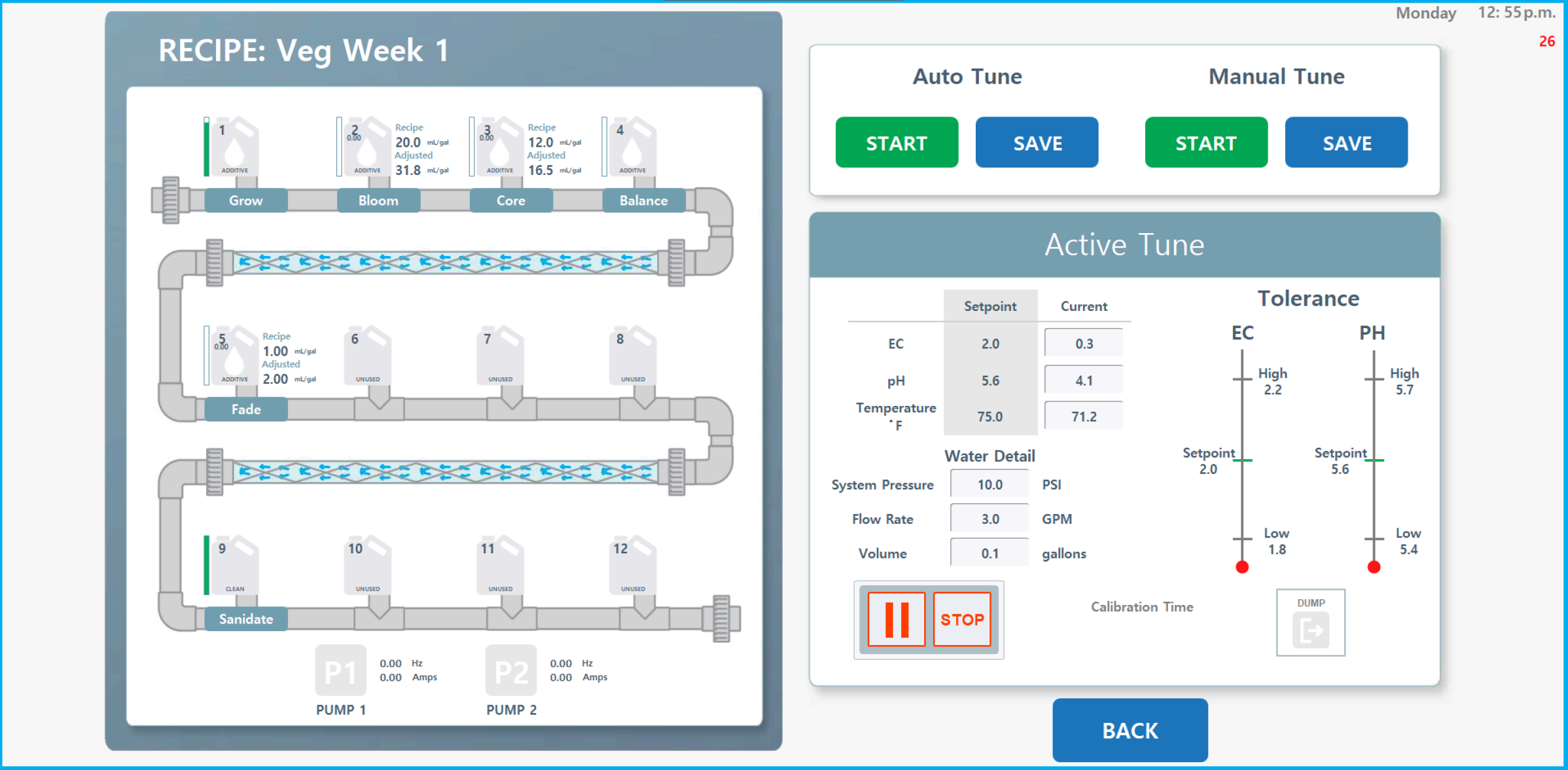
Recipe Tuner. The recipe tuner is a feature that allows the machine and user to tune-in new recipes to hit target pH and EC setpoints before they are run to plants. Select the recipe tuner icon.
Auto Tune will run the recipe dosing rates as prescribed by the Nutrient Recipe being tuned, but will automatically adjust the input values to achive the setpoint pH & EC.
Note: It is best to use the Auto Tune option of this feature.
Manual Tune allows to the user to tune a recipe manually, with the user making the adjustments, not the machine.
Select Start under the Auto Tune at the top right. The system will start making a batch, injecting nutrients at the baseline Nutrient Recipe rates. As it measures the values, it will start to make adjustments to these dosage rates until the results are inline with the pH & EC setpoint tolerances. Once the auto-tune has achieved this, it will show COMPLETE. At this time, hit SAVE to save the tuned recipe values. This process may take several minutes.
Auto Tune will run the recipe dosing rates as prescribed by the Nutrient Recipe being tuned, but will automatically adjust the input values to achive the setpoint pH & EC.
Note: It is best to use the Auto Tune option of this feature.
Manual Tune allows to the user to tune a recipe manually, with the user making the adjustments, not the machine.
Select Start under the Auto Tune at the top right. The system will start making a batch, injecting nutrients at the baseline Nutrient Recipe rates. As it measures the values, it will start to make adjustments to these dosage rates until the results are inline with the pH & EC setpoint tolerances. Once the auto-tune has achieved this, it will show COMPLETE. At this time, hit SAVE to save the tuned recipe values. This process may take several minutes.

Important!
The Recipe Tuner utilizes the local Inline dump to tune recipes. This means that during this process, as the system is running the batch and tuning it in to hit the pH & EC setpoints, the batch will be running to the local floor drain.
The Recipe Tuner utilizes the local Inline dump to tune recipes. This means that during this process, as the system is running the batch and tuning it in to hit the pH & EC setpoints, the batch will be running to the local floor drain.
4. Editing Feed Time Recipes (Direct Feed)
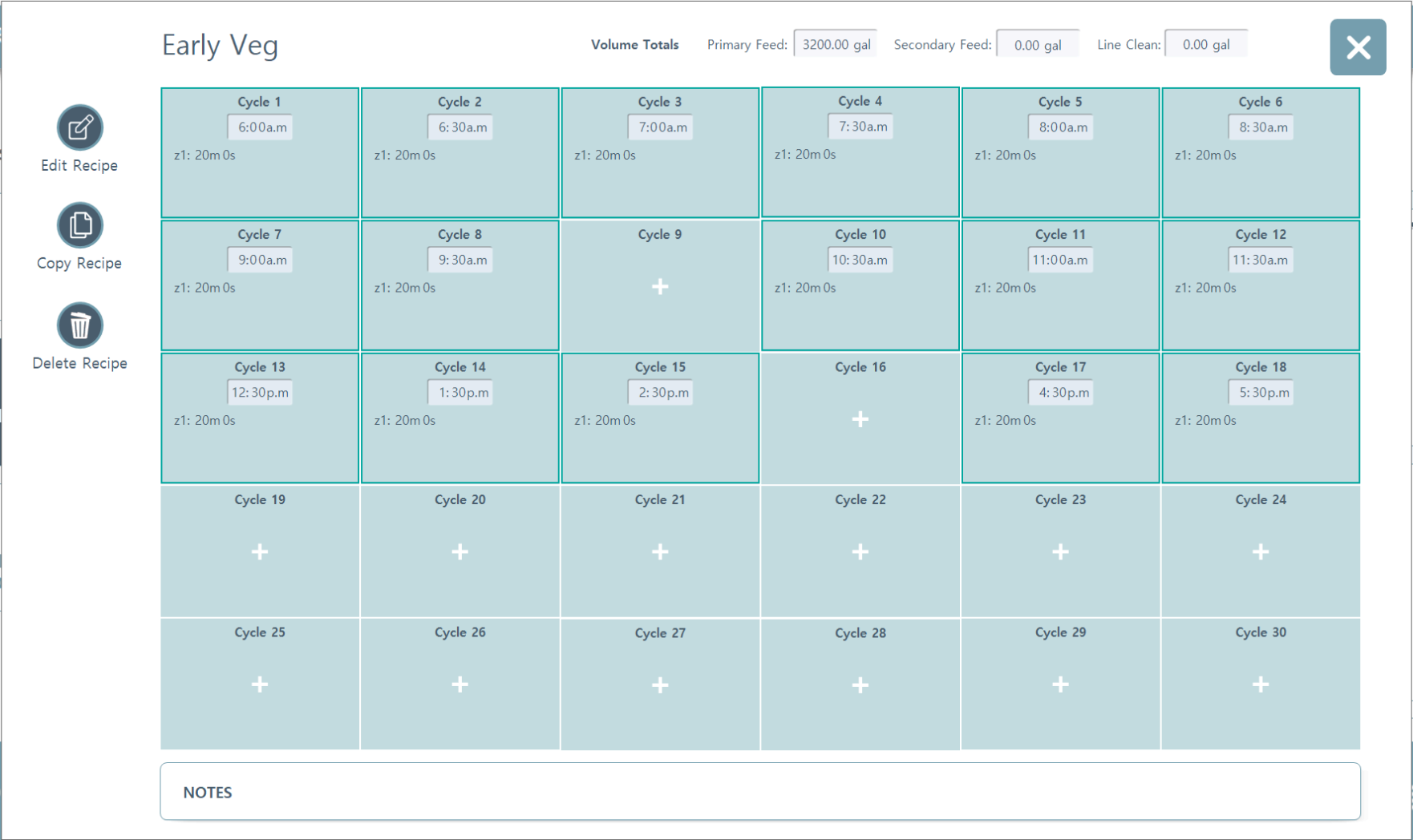
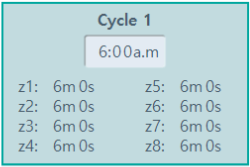
Feed Cycle. Your watering cycles are displayed here. Each watering event is called a "cycle." Cycle number, the time the cycle will initiate, and the time amounts for each zone in the room will be displayed for each event programmed, up to thirty (30) max cycles for a single recipe.
Important!
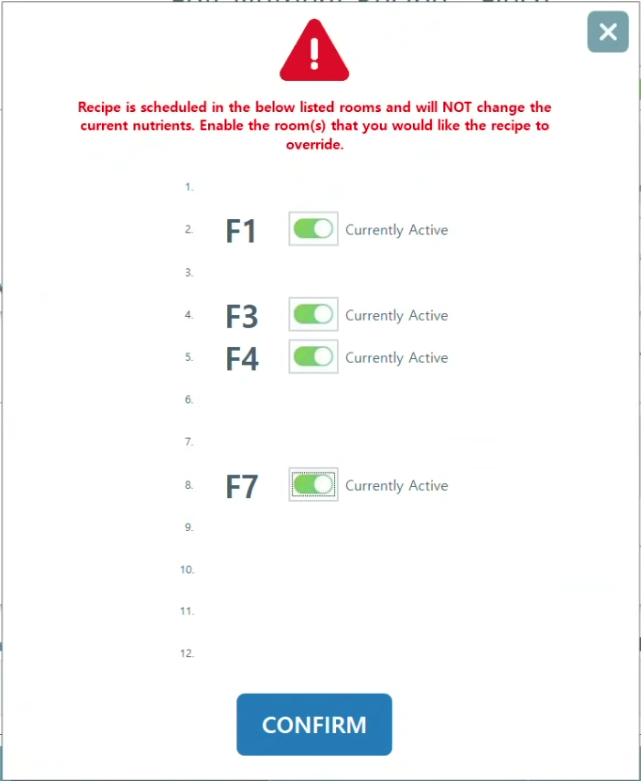
If you edit a recipe from the RECIPE PAGE that is loaded into rooms already, you will see a pop-up appear with options to toggle on the rooms you want the new edits to be applied to. If you want the changes to be applied to the existing rooms, toggle those rooms on and hit CONFIRM.
If you edit a recipe from the existing schedule from the ROOM LEVEL Feed Cycle Manager, those edits will remain in effect ONLY until the next Recipe Transfer.
If you edit a recipe from the RECIPE PAGE that is loaded into rooms already, you will see a pop-up appear with options to toggle on the rooms you want the new edits to be applied to. If you want the changes to be applied to the existing rooms, toggle those rooms on and hit CONFIRM.
If you edit a recipe from the existing schedule from the ROOM LEVEL Feed Cycle Manager, those edits will remain in effect ONLY until the next Recipe Transfer.
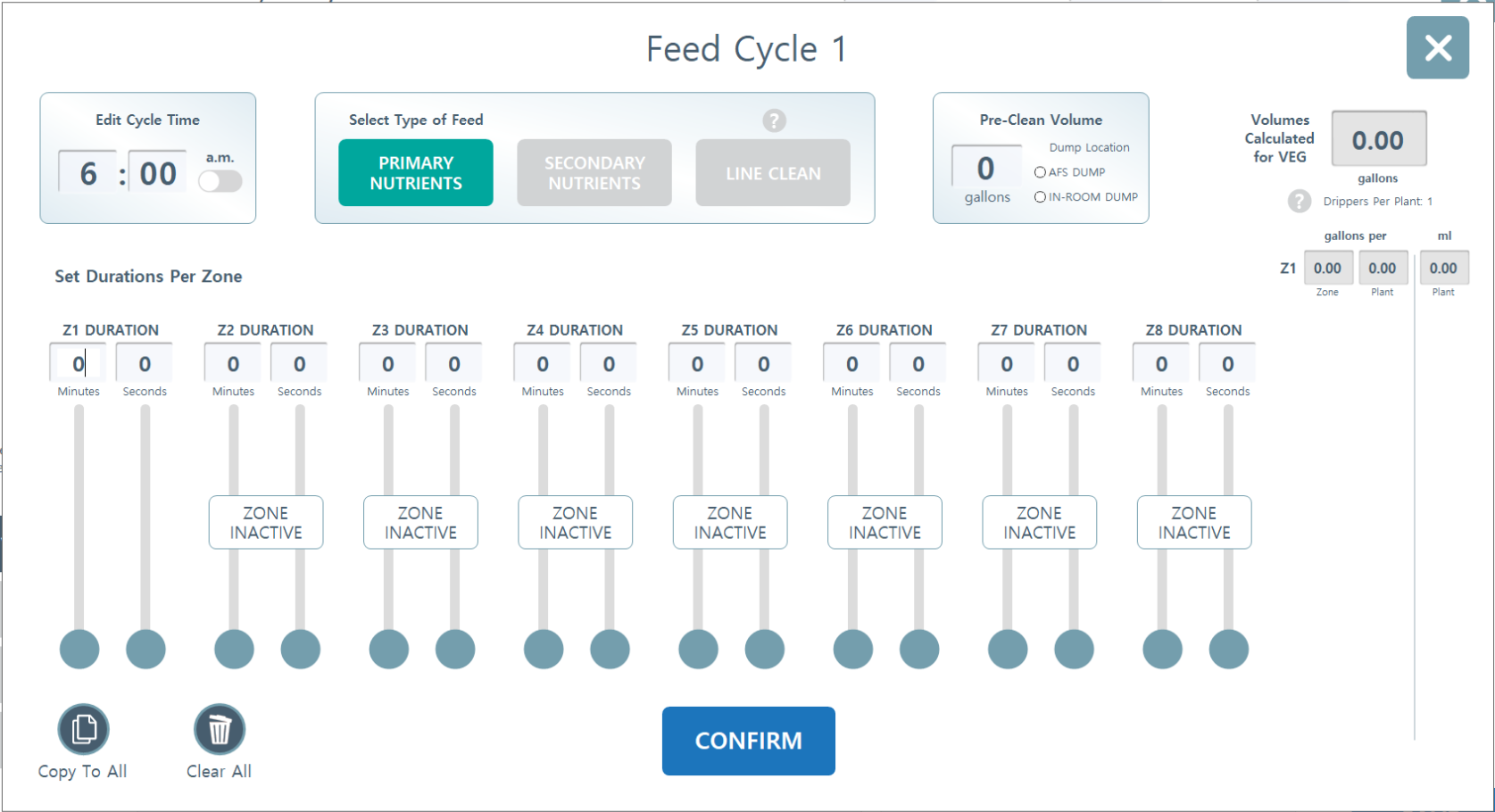
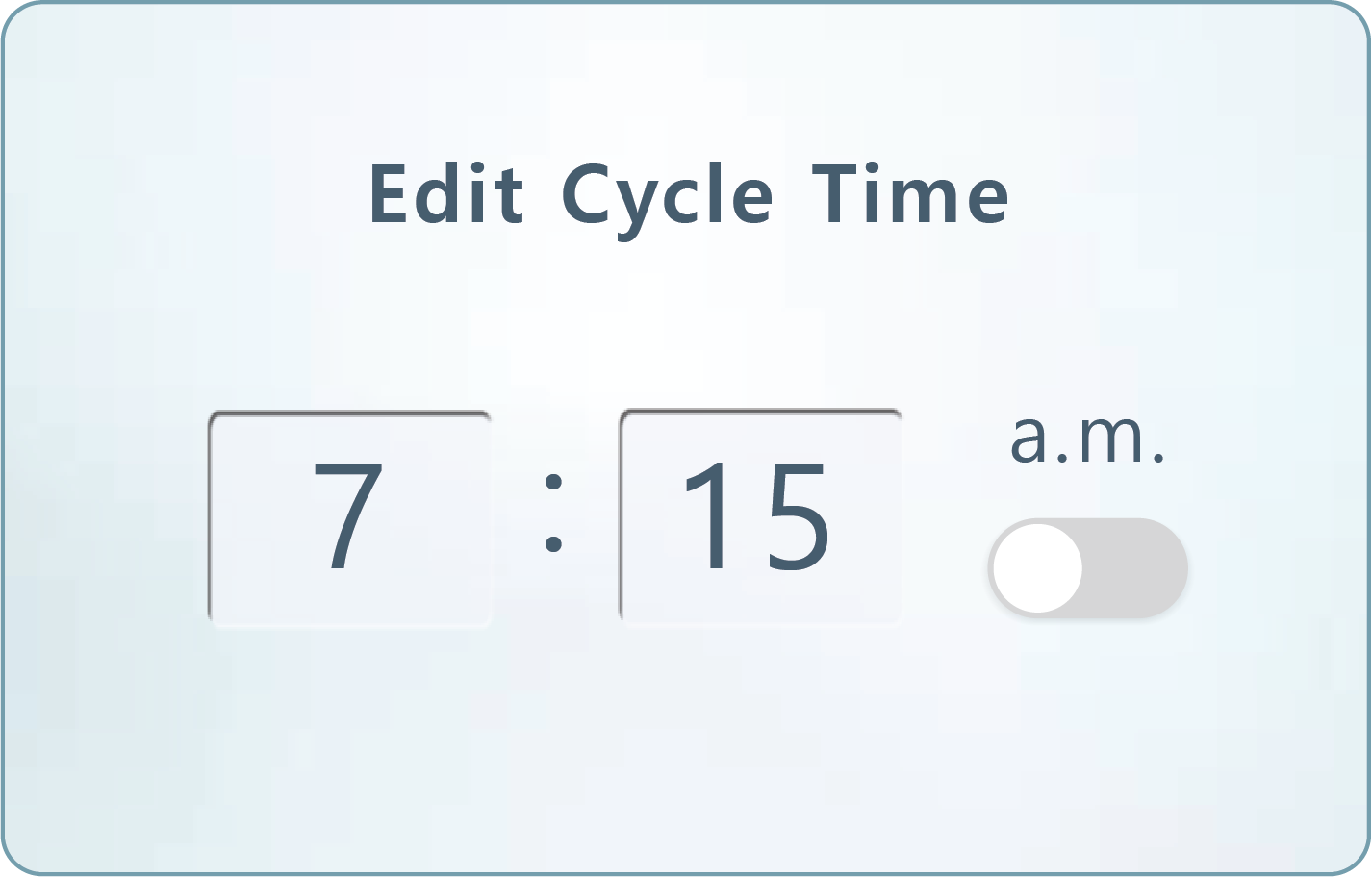
Editing Feed Cycles for Direct Feeds. To create a recipe, click on any cycle card and a pop-up window will appear to edit that cycle (The cycles don't have to be in order by # number, they will activate by time as intended). Input the cycle time. This will be the time this feed event will take place.
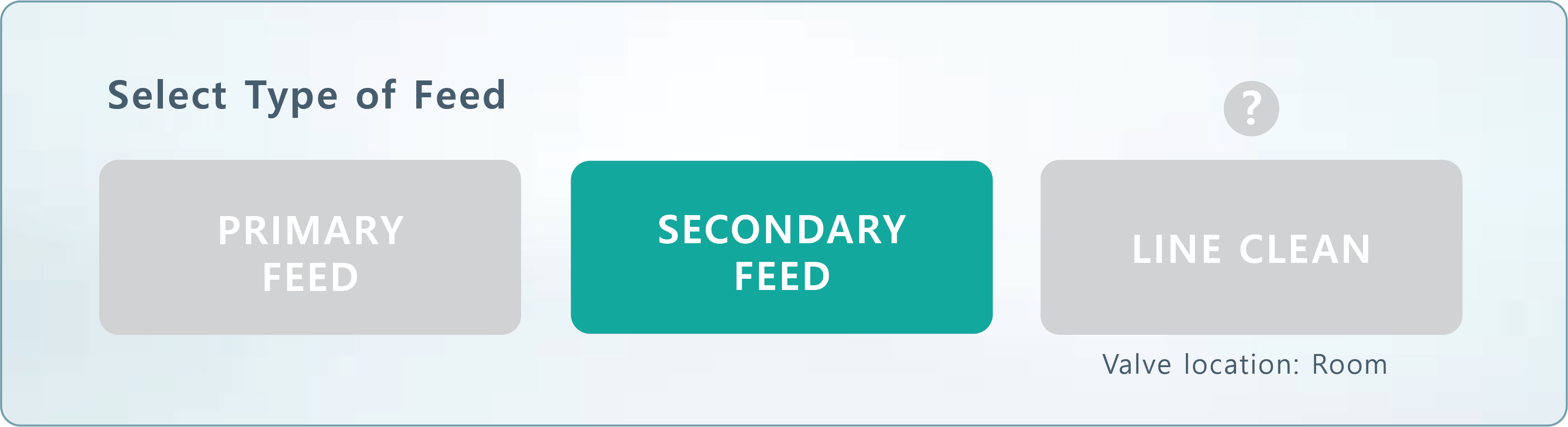
Select the Type of Feed: Primary Nutrients, Secondary Nutrients, or Line Clean.
Primary Feed will utilize your main recipe.
Secondary Feed will utilize your secondary recipes. These are alternative nutrient recipes designed to work alongside your primary schedule. They allow for an automated transition to a different nutritional strategy without overwriting your baseline configurations. By utilizing the Active Secondary Feed Days scheduler, you can designate exactly which days of the week the system should bypass the primary recipe in favor of the secondary profile. These recipes are typically deployed for specialized, events such as:
Flush Protocols: Automating the transition to a low EC or water only solution during the final stages of a growth cycle.
Weekly Special Events: Scheduling recurring "boost" days or midweek adjustments that differ from the primary daily feed.
Line Clean is a flush procedure that can be automated through the Inline AFS to flush the lines through the in-room dump. It can be setup with a cleaning agent on one of the nutrient dosing pumps setup as a cleaning agent.
Primary Feed will utilize your main recipe.
Secondary Feed will utilize your secondary recipes. These are alternative nutrient recipes designed to work alongside your primary schedule. They allow for an automated transition to a different nutritional strategy without overwriting your baseline configurations. By utilizing the Active Secondary Feed Days scheduler, you can designate exactly which days of the week the system should bypass the primary recipe in favor of the secondary profile. These recipes are typically deployed for specialized, events such as:
Flush Protocols: Automating the transition to a low EC or water only solution during the final stages of a growth cycle.
Weekly Special Events: Scheduling recurring "boost" days or midweek adjustments that differ from the primary daily feed.
Line Clean is a flush procedure that can be automated through the Inline AFS to flush the lines through the in-room dump. It can be setup with a cleaning agent on one of the nutrient dosing pumps setup as a cleaning agent.
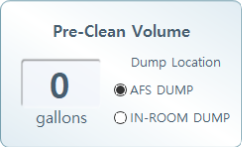
If a Pre-Clean is desired, enter the Pre-Clean Volume and select which dump valve this will go to: Local AFS Dump, or In-Room Dump.
Pre-clean is a feature will flush the initial volume of water or nutrient solution through the irrigation line, to the in-room dump, prior to opening feed-zone valves and going to plants.This purges the line of residual water or nutrient solution left over from the previous day/feed and prevents it from getting fed to plants. To enable the feature, edit the cycle you want the pre-clean event to take place.Typically this is the 1st feed of the day only. Input the gallons you want to flush though, and select if you want it to flush through the local AFS Dump, or In-Room Dump. In application, when this cycle comes up to feed, before it opens feed zones and moves water to plants, it will open up the dump valve and flush the volume set through the dump first. Once that is through, it will move on to feeding plants through the zone valves.
Pre-clean is a feature will flush the initial volume of water or nutrient solution through the irrigation line, to the in-room dump, prior to opening feed-zone valves and going to plants.This purges the line of residual water or nutrient solution left over from the previous day/feed and prevents it from getting fed to plants. To enable the feature, edit the cycle you want the pre-clean event to take place.Typically this is the 1st feed of the day only. Input the gallons you want to flush though, and select if you want it to flush through the local AFS Dump, or In-Room Dump. In application, when this cycle comes up to feed, before it opens feed zones and moves water to plants, it will open up the dump valve and flush the volume set through the dump first. Once that is through, it will move on to feeding plants through the zone valves.

To determine the volume of water needed to flush the irrigation line, calculate a rough lineal feet of pipe, multiply that by the cross sectional area of the inside of the pipe, and convert to gallons.
Edit duration per zone. The feed duration in minutes/seconds will correspond to a volume calculation on the right side of the window per plant, per zone, and a total volume for the feed to the room.
*Keep in mind, the rooms must be configured with their accurate dripper counts and ratings for the volume calculations to show up on the right hand side of the screen, and for the room to feed.
*Keep in mind, the rooms must be configured with their accurate dripper counts and ratings for the volume calculations to show up on the right hand side of the screen, and for the room to feed.

Finally, hit CONFIRM to save the information for that Cycle. Repeat these steps for each desired cycle in the recipe being created, up to 30 total cycles.
5. Editing Feed Time Recipes (Day Storage)
Feed Cycle. Your watering cycles are displayed here. Each watering event is called a "cycle." Cycle number, the time the cycle will initiate, and the time amounts for each zone in the room will be displayed for each event programmed, up to thirty (30) max cycles for a single recipe.
Important!
If you edit a recipe from the RECIPE PAGE that is loaded into rooms already, you will see a pop-up appear with options to toggle on the rooms you want the new edits to be applied to. If you want the changes to be applied to the existing rooms, toggle those rooms on and hit CONFIRM.
If you edit a recipe from the existing schedule from the ROOM LEVEL Feed Cycle Manager, those edits will remain in effect ONLY until the next Recipe Transfer.
If you edit a recipe from the RECIPE PAGE that is loaded into rooms already, you will see a pop-up appear with options to toggle on the rooms you want the new edits to be applied to. If you want the changes to be applied to the existing rooms, toggle those rooms on and hit CONFIRM.
If you edit a recipe from the existing schedule from the ROOM LEVEL Feed Cycle Manager, those edits will remain in effect ONLY until the next Recipe Transfer.

Editing Feed Cycles for Day Storage Feeds. To create a recipe, click on any cycle card and a pop-up window will appear to edit that cycle (The cycles don't have to be in order by # number, they will activate by time as intended). Input the cycle time. This will be the time this feed event will take place.
Pre-clean is a feature will flush the initial volume of water or nutrient solution through the irrigation line, to the in-room dump, prior to opening feed-zone valves and going to plants. This purges the line of residual water or nutrient solution left over from the previous day/feed and prevents it from getting fed to plants. To enable the feature, edit the cycle you want the pre-clean event to take place. Typically this is the 1st feed of the day only. Input the time in seconds you want the flush valve to stay on. In application, when this cycle comes up to feed, before it opens feed zones and moves water to plants, it will open up the dump valve and flush the residual line through the dump for the amount of seconds set. Once that is through, it will move on to feeding plants through the zone valves.
To determine the time needed to fully flush the irrigation line through, first calculate the rough lineal feet of pipe, multiply by the cross-sectional area of the inside of the pipe, and convert to gallons. Determine the flow rate the dump operates in this room: This is setup during startup to be 10GPM typically, but since this is a changeable setting, the flow rate could be different for your room or facility. Divide the volume in the pipe (gallons) by the flow rate (gallons per minute), and convert to seconds.
Edit duration per zone. The feed duration in minutes/seconds will correspond to a volume calculation on the right side of the window per plant, per zone, and a total volume for the feed to the room.
*Keep in mind, the rooms must be configured with their accurate dripper counts and ratings for the volume calculations to show up on the right hand side of the screen, and for the room to feed.
*Keep in mind, the rooms must be configured with their accurate dripper counts and ratings for the volume calculations to show up on the right hand side of the screen, and for the room to feed.
Finally, hit CONFIRM to save the information for that Cycle. Repeat these steps for each desired cycle in the recipe being created, up to 30 total cycles.
Name & Save. Once the desired schedule is filled out, name the recipe under Edit Recipe Title and Save. Repeat steps to create a log of recipes in your Recipe page. If any parameter is unique or different, for pH, EC, Feed Times, Feed Time Volumes, Etc. then a new unique recipe should be created, named and stored in the recipe log for use.
Important!
If you edit a recipe from the RECIPE PAGE that is loaded into rooms already, you will see a pop-up appear with options to toggle on the rooms you want the new edits to be applied to. If you want the changes to be applied to the existing rooms, toggle those rooms on and hit CONFIRM.
If you edit a recipe from the existing schedule from the ROOM LEVEL Feed Cycle Manager, those edits will remain in effect ONLY until the next Recipe Transfer.
If you edit a recipe from the RECIPE PAGE that is loaded into rooms already, you will see a pop-up appear with options to toggle on the rooms you want the new edits to be applied to. If you want the changes to be applied to the existing rooms, toggle those rooms on and hit CONFIRM.
If you edit a recipe from the existing schedule from the ROOM LEVEL Feed Cycle Manager, those edits will remain in effect ONLY until the next Recipe Transfer.


.svg)