

INLINE SOFTWARE USER GUIDE
Feed Scheduler
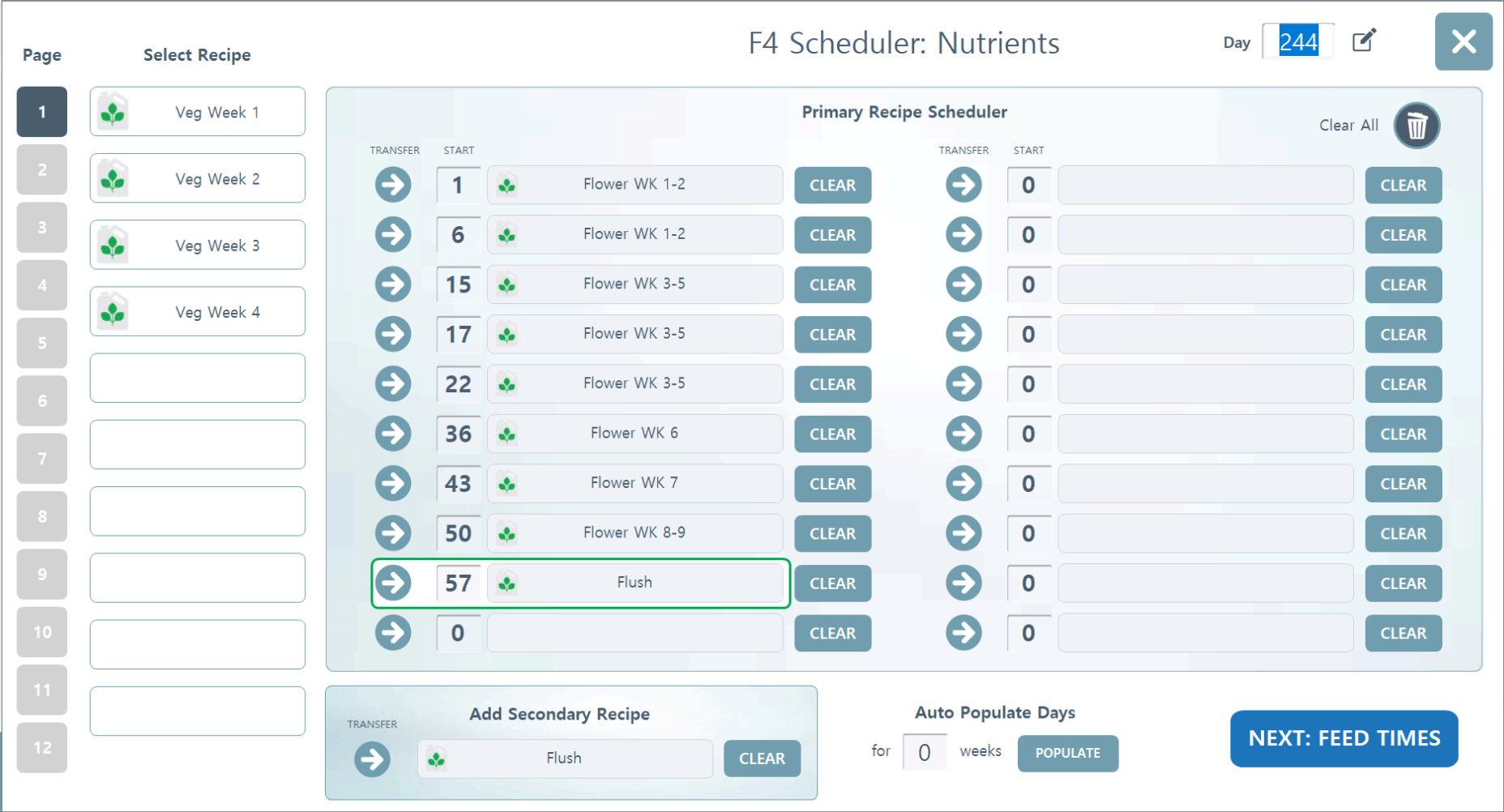
1. Inputting Recipes into the Scheduler
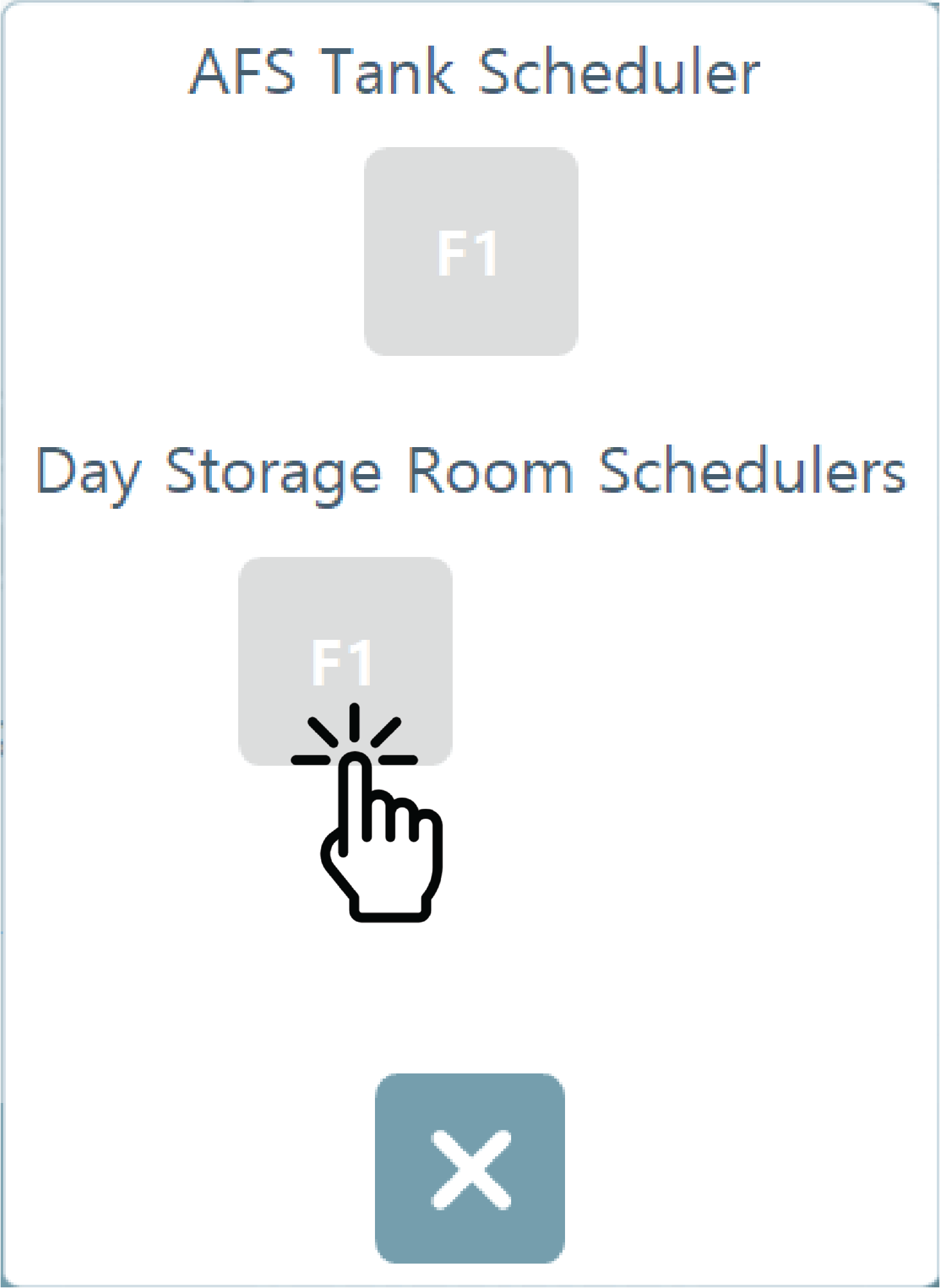
If the room has Day Storage tanks, upon clicking the Scheduler, you will be given an option for AFS Tank Scheduler or Day Storage Room Shedulers.
The AFS Tank Scheduler will schedule the Nutrient Recipe and when it is filling the Day Tank.
The Day Storage Scheduler will schedule when to feed from Day Storage tanks to the room.
You do not need to use the Scheduler to fill Day Storage tanks. You can use the Auto-Fill feature, or use Fill Now to do it manually as needed.
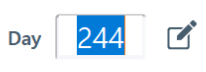
Harvest Day Setting. You cannot edit your harvest week/day from CONFIGURATION, it must be done here, through the FEED SCHEDULER. Enter the day and week your harvest is in. This is required for schedule based feeding functionality.
Scheduler. You can schedule your room's entire harvest with recipes you created in the RECIPE BUILDER. From the Scheduler main page, you will see an overview of each week's scheduled recipe (up to 20 weeks). You can set up how many weeks your harvest has by going to Rhythm Logo > CONFIGURATION > Room # > Average Weeks per Harvest. Recipes will automatically switch over to the following week's schedule if you have entered a nutrient recipe for more than 1 week.
Step 1. Adding a Nutrient Recipe
You MUST create and load Nutrient Recipes. Each room scheduler must have the nutrient recipes loaded that will be delivered to the room or tank. This is required for basic system function.
*Required*Step 1. Adding a Nutrient Recipe
You MUST create and load Nutrient Recipes. Each room scheduler must have the nutrient recipes loaded that will be delivered to the room or tank. This is required for basic system function.
How to Insert Recipes into the Scheduler.
• Start by finding the recipe you'd like to use for Week 1 or whichever week you'd like to schedule. The tile can be empty or have another recipe inside, the actions you take next will override anything inside the tile. You can cycle through all of your recipes by using the page numbers on the left side. Once you have selected the desired recipe, the box will outline in green.
• Press the arrow next to the corresponding week you'd like to insert the recipe:
• Start by finding the recipe you'd like to use for Week 1 or whichever week you'd like to schedule. The tile can be empty or have another recipe inside, the actions you take next will override anything inside the tile. You can cycle through all of your recipes by using the page numbers on the left side. Once you have selected the desired recipe, the box will outline in green.
• Press the arrow next to the corresponding week you'd like to insert the recipe:
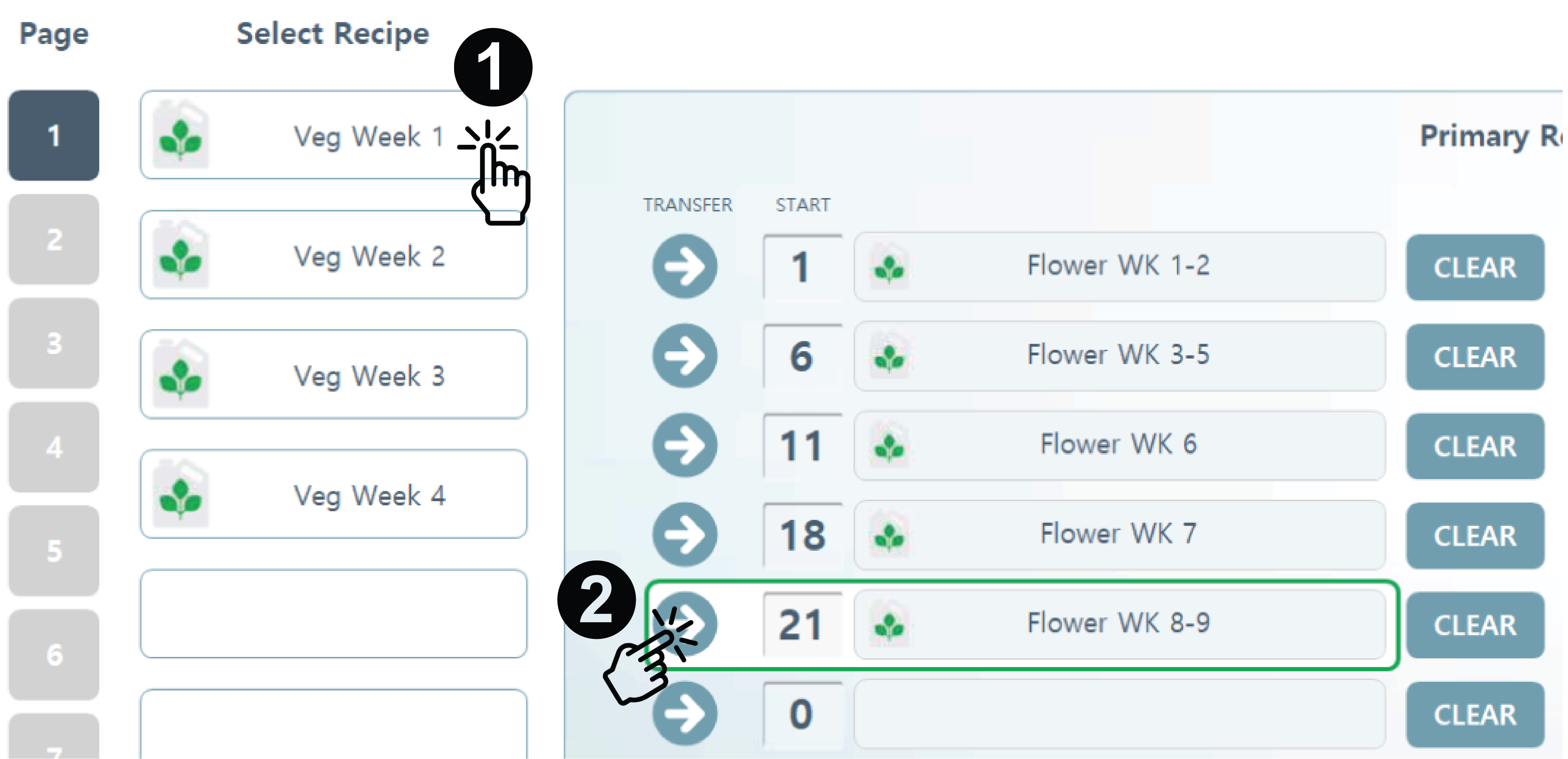
Remove Recipe. You can also clear out a recipe by pressing the "Clear" button.
Actively Feeding Recipe. The recipe that is actively feeding today will be outlined in green.
Actively Feeding Recipe. The recipe that is actively feeding today will be outlined in green.

Start/Transfer Day. Always begin your schedule on Day 1 with the initial recipe. Set the number of days each recipe should remain active. The system will automatically "transfer" or switch to the subsequent recipe once the designated duration concludes. To align your fertigation with a standard 7 day calendar week, program your first recipe for Day 1 and your second for Day 8. You may also use the Auto Populate tool to quickly generate these recurring weekly intervals.
Auto Populate Days. To simplify weekly transfer day counts, you can use the tool at the bottom of the scheduler to auto populate weeks. Note: If you use this tool and you have recipes in the scheduler, they will not be overwritten after pressing "populate." A red box will outline the weeks that do not have any recipes.
Auto Populate Days. To simplify weekly transfer day counts, you can use the tool at the bottom of the scheduler to auto populate weeks. Note: If you use this tool and you have recipes in the scheduler, they will not be overwritten after pressing "populate." A red box will outline the weeks that do not have any recipes.
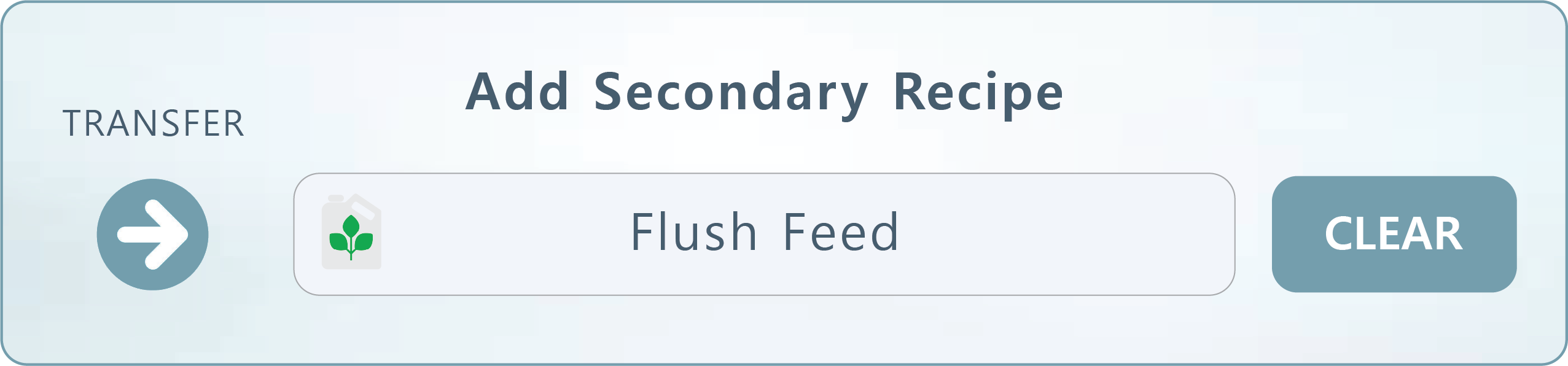
Secondary Recipe. Secondary Recipes are alternative nutrient recipes designed to work alongside your primary schedule. They allow for an automated transition to a different nutritional strategy without overwriting your baseline configurations. By utilizing the Active Secondary Feed Days scheduler, you can designate exactly which days of the week the system should bypass the primary recipe in favor of the secondary profile. These recipes are typically deployed for specialized, events such as:
Flush Protocols: Automating the transition to a low EC or water only solution during the final stages of a growth cycle.
Weekly Special Events: Scheduling recurring "boost" days or midweek adjustments that differ from the primary daily feed.
Flush Protocols: Automating the transition to a low EC or water only solution during the final stages of a growth cycle.
Weekly Special Events: Scheduling recurring "boost" days or midweek adjustments that differ from the primary daily feed.
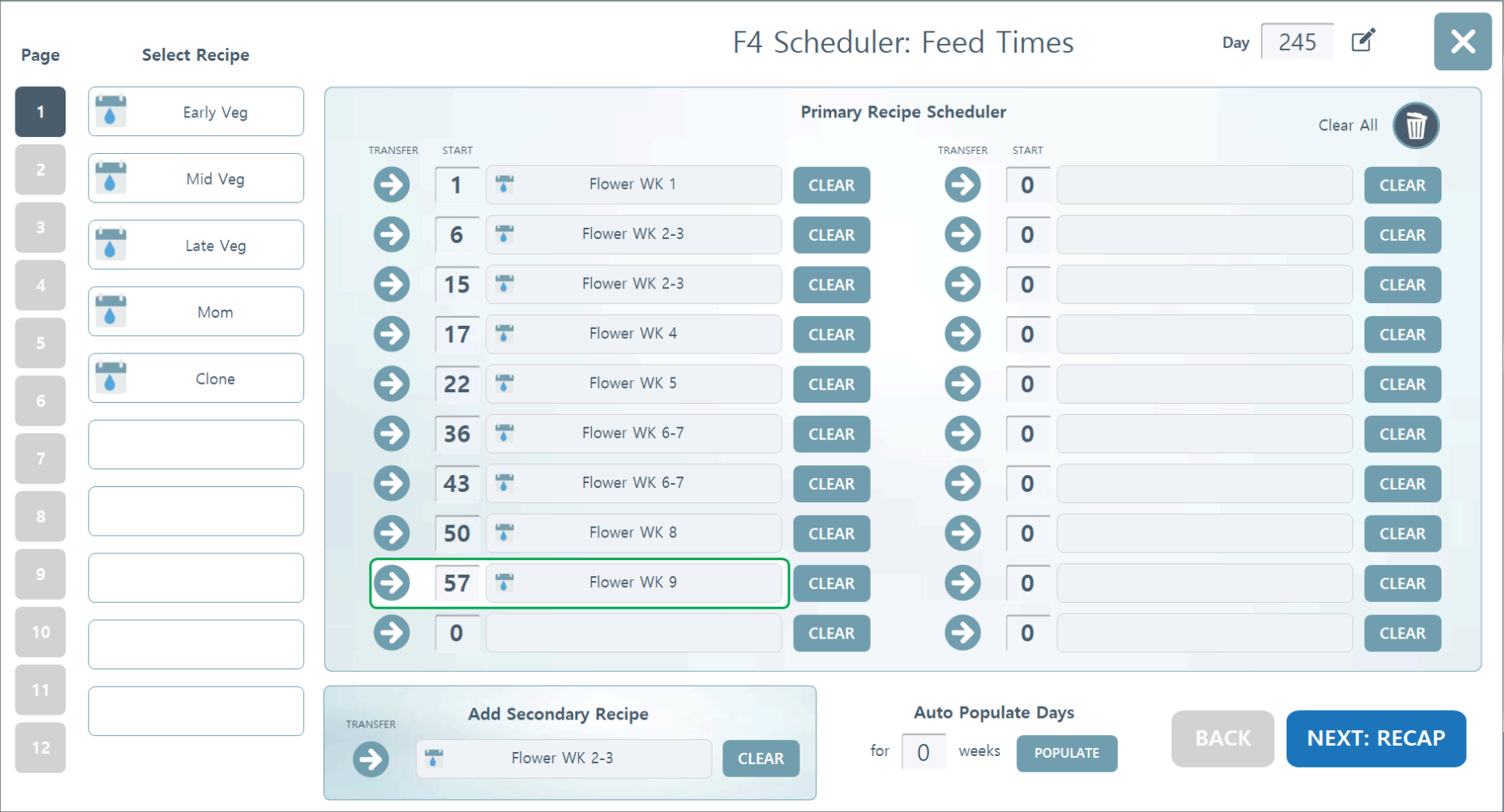
Step 2. Adding a Feed Times Recipe
The next section will be the same process, but for the Feed Time recipes. The previous section denoted what will be fed to the plants, and this section denotes when to feed that recipe.
Loading Feed Time Recipes in the scheduler is not required for basic system function. Instead, you can choose to load your feed cycles in the local, room level feed cycle manger. The difference is that when loading to the local room level feed cycle manager, that schedule will loop indefinitely, where using the scheduler will allow you to automate the changes in your feed schedules throughout the harvest cycle.
If scheduling feed time recipes, fill out the feed time scheduler with your transfer days and corresponding feed time recipes from the list on the left side of the screen. If using a secondary recipe, make sure to insert that recipe into the secondary spot.
Click Next: Recap to continue.
The next section will be the same process, but for the Feed Time recipes. The previous section denoted what will be fed to the plants, and this section denotes when to feed that recipe.
Loading Feed Time Recipes in the scheduler is not required for basic system function. Instead, you can choose to load your feed cycles in the local, room level feed cycle manger. The difference is that when loading to the local room level feed cycle manager, that schedule will loop indefinitely, where using the scheduler will allow you to automate the changes in your feed schedules throughout the harvest cycle.
If scheduling feed time recipes, fill out the feed time scheduler with your transfer days and corresponding feed time recipes from the list on the left side of the screen. If using a secondary recipe, make sure to insert that recipe into the secondary spot.
Click Next: Recap to continue.
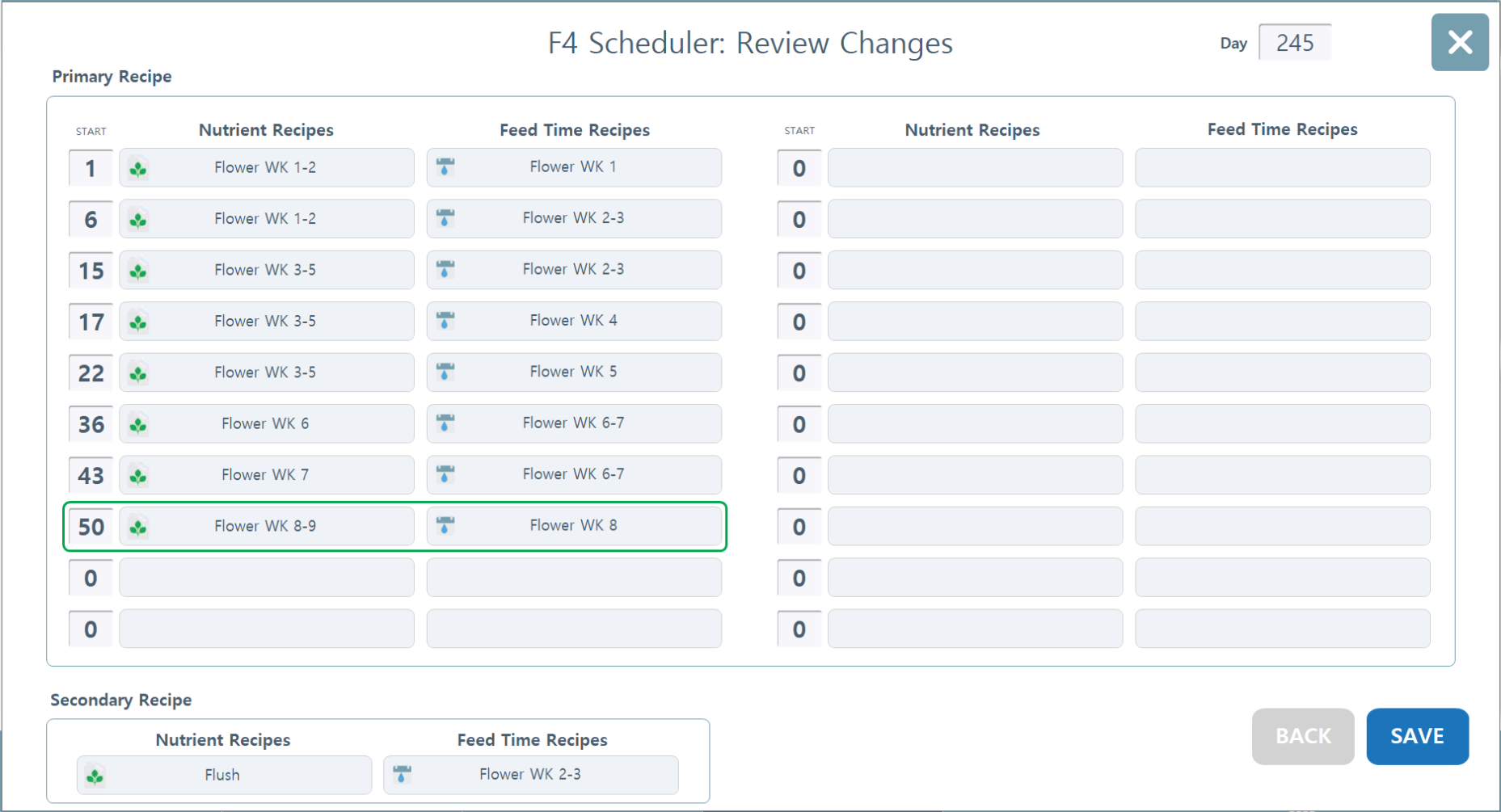
Step 3. Recap
The last page of editing the scheduler will show you an at-a-glance look at both your Nutrient Recipes schedule and Feed Time Recipe schedule, as well as which recipes are allocated for Secondary Recipe. Press SAVE to complete the changes.
The last page of editing the scheduler will show you an at-a-glance look at both your Nutrient Recipes schedule and Feed Time Recipe schedule, as well as which recipes are allocated for Secondary Recipe. Press SAVE to complete the changes.
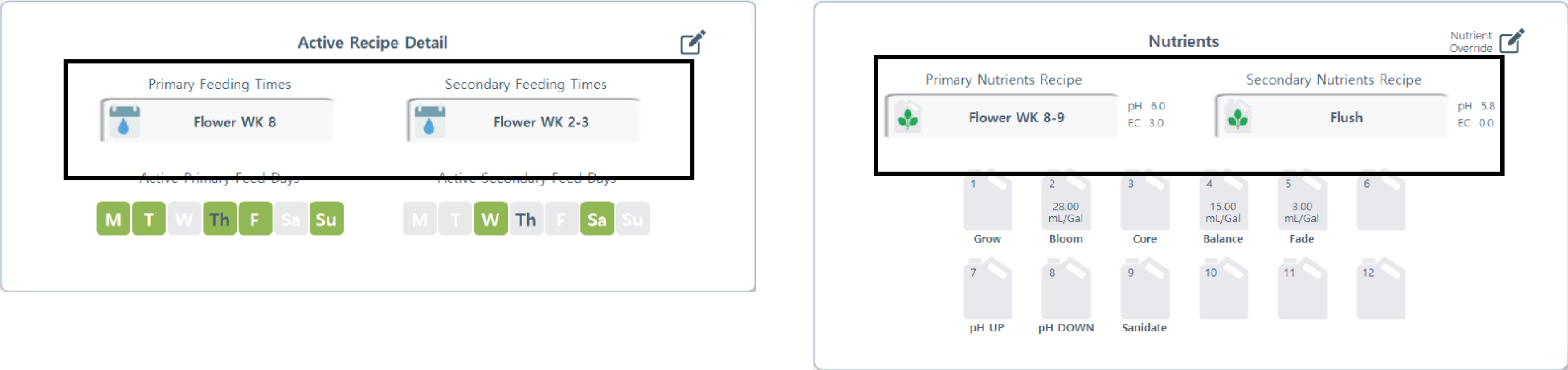
After saving the changes, you will be taken back to the Room Overview and your active recipes will be displayed under the Active Recipe Detail and Nutrient cards. For more info, please see ROOM OVERVIEW.
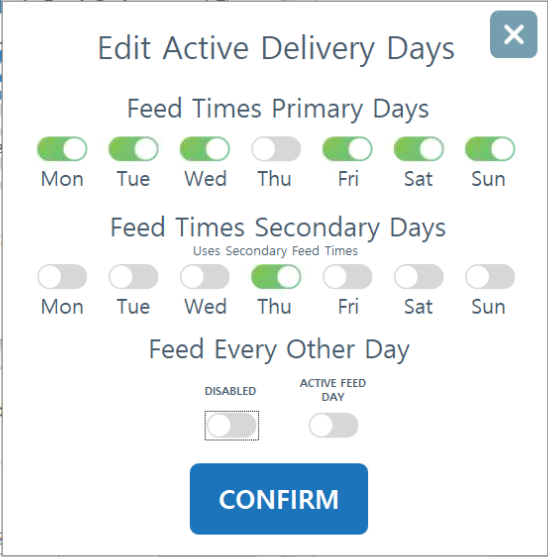
To complete setting up an automated schedule, the last step is to toggle-on the days that you wish for the programmed schedules and recipes to run. On the Room page, select the Active Recipe Detail card in the upper right corner. A pop-up will appear allowing you to toggle on/off the days you want the machine to feed the plants. If that is every day, then toggle-on each day of the week. If you setup a Secondary Feed time schedule, toggle-on the days you want that schedule to run. If your feeding program feeds one day on, one day off, then toggle-on the Feed Every Other Day option. If today is an active feed day, toggle that on, if not, leave it off. Confirm settings. The active days will highlight green for each Primary and Secondary schedules.
Active Primary/Secondary Days. The Active Feed Days interface allows you to designate exactly when your Primary and Secondary recipes are deployed throughout the week.
Calendar Key
Blue Lettering: Indicates the current day of the week.
Green Highlighted Box: Indicates a day where a feed is actively scheduled for that specific recipe type (Primary or Secondary column).
Grey/Transparent: Indicates a "dry" day or a day where that specific recipe is inactive.
Active Primary Feed Days: Assign these to your standard, daily production nutrient profile.
Active Secondary Feed Days: Assign these for specific special/weekly adjustments, such as a "flush" day, a nutrient-specific boost, or hardening-off formulas.
Calendar Key
Blue Lettering: Indicates the current day of the week.
Green Highlighted Box: Indicates a day where a feed is actively scheduled for that specific recipe type (Primary or Secondary column).
Grey/Transparent: Indicates a "dry" day or a day where that specific recipe is inactive.
Active Primary Feed Days: Assign these to your standard, daily production nutrient profile.
Active Secondary Feed Days: Assign these for specific special/weekly adjustments, such as a "flush" day, a nutrient-specific boost, or hardening-off formulas.

Edit Active Delivery Days. Upon clicking the edit button in the upper right hand corner on the Active Recipe Detail card, you will be able to change the days in which the recipes will feed.
Please note: Changes made here will be overwritten to what is scheduled in the Scheduler on Transfer Day.
Feed Every Other Day. You can enable the green toggle to feed every other day. If you'd like today to be the first day to start feeding, click the "Active Feed Day" toggle.
Please note: Changes made here will be overwritten to what is scheduled in the Scheduler on Transfer Day.
Feed Every Other Day. You can enable the green toggle to feed every other day. If you'd like today to be the first day to start feeding, click the "Active Feed Day" toggle.
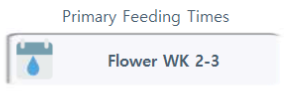
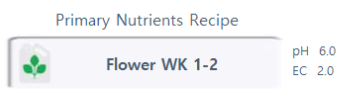
Nutrient and Feed Time Recipes. You can choose to run a Secondary Nutrient Recipe to run concurrently with the Primary Recipe. In order to use this feature, an alternate recipe must be setup in the Add Secondary Recipe spot in the scheduler. Setting up the secondary recipe is done in Feed Time Recipes. See Recipe section for how to create a recipe. Select which feed cycle you want to be Primary Nutrients, and which cycles you want as Secondary Nutrients.


.svg)